
TeltoCare First Start: Difference between revisions
No edit summary |
|||
| (9 intermediate revisions by the same user not shown) | |||
| Line 1: | Line 1: | ||
[[Category:TeltoCare]] | [[Category:TeltoCare]] | ||
==TeltoCare system== | |||
<!-- ═══════════════════════════════════════════════ | |||
TELTOCARE SYSTEM | |||
════════════════════════════════════════════════ --> | |||
== TeltoCare system == | |||
<div style="background:#ffffff; border:1px solid #e0e8f4; border-radius:12px; padding:32px; margin-bottom:8px;"> | |||
<p style="font-size:26px; font-weight:700; color:#0054A6; margin:0 0 24px; text-align:center;">TeltoCare system</p> | |||
[[Image:Teltocare TeltoHeart.png|500px|center|link=]] | |||
<p style="margin-top:16px; font-size:15px; color:#333; max-width:720px; margin-left:auto; margin-right:auto; text-align:center;">TeltoCare is used to display elecrocardiogram and heart rate data collected by TeltoHeart and transmitted by the TeltoHeart mobile application for further analysis and interpretation by qualified clinicians.</p> | |||
<p style="text-align:center; margin-top:12px;">TeltoCare is reachable via: [https://teltocare.com https://teltocare.com]</p> | |||
</div> | |||
<!-- ═══════════════════════════════════════════════ | |||
IDENTIFYING A LEGITIMATE WEBSITE | |||
════════════════════════════════════════════════ --> | |||
== How to identify a legitimate TeltoCare website == | |||
<div style="background:#ffffff; border:1px solid #e0e8f4; border-radius:12px; padding:32px; margin-bottom:8px;"> | |||
<p style="font-size:20px; font-weight:700; color:#0054A6; margin:0 0 20px;">How to identify that you are entering a legitimate TeltoCare website</p> | |||
{| style="width:100%; border-collapse:collapse;" | |||
|- | |- | ||
| | | style="width:52px; vertical-align:top; padding:0 0 20px 0;" | [[Image:Nr1.png|40px|link=]] | ||
| style="padding:0 0 20px 16px; font-size:15px; vertical-align:top;" | '''Check the URL:''' Look at the website URL to ensure it is spelled correctly and matches the website you intended to visit. Phishing scam websites often use similar-looking URLs to trick users into thinking they are on a legitimate website. | |||
|- | |- | ||
|[[Image: | | style="width:52px; vertical-align:top; padding:0 0 20px 0;" | [[Image:Nr2.png|40px|link=]] | ||
| | | style="padding:0 0 20px 16px; font-size:15px; vertical-align:top;" | '''Check for SSL encryption:''' Look for the padlock icon or "https" in the website address to confirm the website uses SSL encryption. Phishing scam websites often do not have SSL encryption or may have invalid SSL certificates. | ||
|- | |- | ||
| style="width:52px; vertical-align:top;" | [[Image:Nr3.png|40px|link=]] | |||
| style="padding:0 0 0 16px; font-size:15px; vertical-align:top;" | '''Look for branding inconsistencies:''' Check for any inconsistencies in the branding, logos, or design of the website, as phishing scam websites often use inaccurate or outdated branding to appear legitimate. | |||
|} | |} | ||
<div style="background:#FFF4E5; border-left:4px solid #E8860A; border-radius:0 8px 8px 0; padding:14px 18px; margin-top:20px; display:flex; align-items:flex-start; gap:12px;"> | |||
[[File:Caution.png|24px|link=]] | |||
<div>'''Caution:''' If the system is unable to communicate with the server, try again later.</div> | |||
</div> | |||
</div> | |||
<!-- ═══════════════════════════════════════════════ | |||
COMPATIBILITY | |||
════════════════════════════════════════════════ --> | |||
== Compatibility == | |||
<div style="background:#ffffff; border:1px solid #e0e8f4; border-radius:12px; padding:32px; margin-bottom:8px;"> | |||
<p style="font-size:20px; font-weight:700; color:#0054A6; margin:0 0 16px;">Compatibility</p> | |||
<p style="font-size:15px; color:#333; margin:0 0 12px;">A computer or any device with a web browser is compatible with:</p> | |||
* Mozilla Firefox browser v114 or newer | |||
* Google Chrome browser v100 or newer | |||
* Mozilla | |||
* Google | |||
* Safari browser v16.5 or newer | * Safari browser v16.5 or newer | ||
<div style="background:#EEF6FF; border-left:4px solid #0054A6; border-radius:0 8px 8px 0; padding:14px 18px; margin-top:20px; display:flex; align-items:flex-start; gap:12px;"> | |||
[[File:Note_icon.png|24px|link=]] | |||
<div> | |||
'''Note:''' | |||
* Using a browser version earlier than specified might result in reduced functionality or compatibility issues. | * Using a browser version earlier than specified might result in reduced functionality or compatibility issues. | ||
* If you are using a | * If you are using a browser not listed here, you might experience compatibility issues. We recommend switching to one of the supported browsers for a better experience. | ||
* Always ensure that your browser is up-to-date for the best security and performance. | * Always ensure that your browser is up-to-date for the best security and performance. | ||
</div> | |||
</div> | |||
</div> | |||
<!-- ═══════════════════════════════════════════════ | |||
DATA TRANSFER | |||
════════════════════════════════════════════════ --> | |||
When the TeltoHeart mobile application is running in the background, data collected by the TeltoHeart smart wearable is scheduled to transfer to the TeltoCare web platform automatically on an hourly basis. This automatic transfer ensures that your health data remains up-to-date and readily available for analysis and management on the TeltoCare platform.< | == Data transfer to TeltoCare web platform == | ||
Additionally, users have the option to manually initiate a data sync through the TeltoHeart mobile application. By tapping the '''SYNC NOW''' button within the app, users can trigger an immediate transfer of collected data to the TeltoCare web platform | |||
<div style="background:#ffffff; border:1px solid #e0e8f4; border-radius:12px; padding:32px; margin-bottom:8px;"> | |||
<p style="font-size:20px; font-weight:700; color:#0054A6; margin:0 0 16px;">Data Transfer to TeltoCare Web Platform</p> | |||
<p style="font-size:15px; color:#333; margin:0 0 16px;">When the TeltoHeart mobile application is running in the background, data collected by the TeltoHeart smart wearable is scheduled to transfer to the TeltoCare web platform automatically on an hourly basis. This automatic transfer ensures that your health data remains up-to-date and readily available for analysis and management on the TeltoCare platform.</p> | |||
<p style="font-size:15px; color:#333; margin:0 0 20px;">Additionally, users have the option to manually initiate a data sync through the TeltoHeart mobile application. By tapping the '''SYNC NOW''' button within the app, users can trigger an immediate transfer of collected data to the TeltoCare web platform, allowing them to ensure their latest health information is promptly uploaded regardless of the scheduled hourly transfer.</p> | |||
[[File:Group70665.png|center|300px]] | |||
</div> | |||
<!-- ═══════════════════════════════════════════════ | |||
HIERARCHY | |||
════════════════════════════════════════════════ --> | |||
== TeltoCare hierarchy == | |||
<div style="background:#ffffff; border:1px solid #e0e8f4; border-radius:12px; padding:32px; margin-bottom:8px;"> | |||
<p style="font-size:20px; font-weight:700; color:#0054A6; margin:0 0 16px; text-align:center;">TeltoCare hierarchy</p> | |||
<p style="font-size:15px; color:#333; margin:0 0 20px; text-align:center;">TeltoCare's hierarchical structure outlines the different roles and responsibilities within the TeltoCare ecosystem, from high-level administrative functions to specialised roles tailored to specific organisational levels and user types.</p> | |||
<div style="max-width:680px; font-family:inherit; margin:0 auto;"> | |||
<!-- TELEMEDIC ORGANIZATION --> | |||
<div style="border:2px solid #0054A6; border-radius:12px; padding:20px 24px 24px; margin-bottom:16px; background:#f0f6ff;"> | |||
<div style="font-size:13px; font-weight:700; color:#0054A6; text-transform:uppercase; letter-spacing:0.08em; margin-bottom:16px;">🏢 Telemedic Organization</div> | |||
<div style="display:flex; gap:12px; flex-wrap:wrap;"> | |||
<div style="flex:1; min-width:120px; background:#ffffff; border:1.5px solid #0054A6; border-radius:8px; padding:12px 10px; text-align:center; font-size:14px; font-weight:600; color:#0054A6;">Admin account</div> | |||
<div style="flex:1; min-width:120px; background:#ffffff; border:1.5px solid #0054A6; border-radius:8px; padding:12px 10px; text-align:center; font-size:14px; font-weight:600; color:#0054A6;">Sales account</div> | |||
<div style="flex:1; min-width:120px; background:#ffffff; border:1.5px solid #0054A6; border-radius:8px; padding:12px 10px; text-align:center; font-size:14px; font-weight:600; color:#0054A6;">Support account</div> | |||
</div> | |||
</div> | |||
<!-- CONNECTOR --> | |||
<div style="text-align:center; margin:-6px 0; font-size:20px; color:#0054A6;">↓</div> | |||
<!-- DISTRIBUTOR ORGANIZATION --> | |||
<div style="border:2px solid #0077CC; border-radius:12px; padding:20px 24px 24px; margin:10px 0 16px; background:#f5f9ff;"> | |||
<div style="font-size:13px; font-weight:700; color:#0077CC; text-transform:uppercase; letter-spacing:0.08em; margin-bottom:16px;">🏬 Distributor Organization</div> | |||
<div style="display:flex; gap:12px; flex-wrap:wrap;"> | |||
<div style="flex:1; min-width:120px; background:#ffffff; border:1.5px solid #0077CC; border-radius:8px; padding:12px 10px; text-align:center; font-size:14px; font-weight:600; color:#0077CC;">Admin account</div> | |||
<div style="flex:1; min-width:120px; background:#ffffff; border:1.5px solid #0077CC; border-radius:8px; padding:12px 10px; text-align:center; font-size:14px; font-weight:600; color:#0077CC;">Sales account</div> | |||
<div style="flex:1; min-width:120px; background:#ffffff; border:1.5px solid #0077CC; border-radius:8px; padding:12px 10px; text-align:center; font-size:14px; font-weight:600; color:#0077CC;">Support account</div> | |||
</div> | |||
</div> | |||
<!-- CONNECTOR --> | |||
<div style="text-align:center; margin:-6px 0; font-size:20px; color:#0077CC;">↓</div> | |||
<!-- HOSPITAL ORGANIZATION --> | |||
<div style="border:2px solid #00A3A3; border-radius:12px; padding:20px 24px 24px; margin:10px 0 16px; background:#f0fafa;"> | |||
<div style="font-size:13px; font-weight:700; color:#00A3A3; text-transform:uppercase; letter-spacing:0.08em; margin-bottom:16px;">🏥 Hospital Organization</div> | |||
<div style="display:flex; gap:12px; flex-wrap:wrap;"> | |||
<div style="flex:1; min-width:120px; background:#ffffff; border:1.5px solid #00A3A3; border-radius:8px; padding:12px 10px; text-align:center; font-size:14px; font-weight:600; color:#00A3A3;">Admin account</div> | |||
<div style="flex:1; min-width:120px; background:#ffffff; border:1.5px solid #00A3A3; border-radius:8px; padding:12px 10px; text-align:center; font-size:14px; font-weight:600; color:#00A3A3;">Support account</div> | |||
<div style="flex:1; min-width:120px; background:#ffffff; border:1.5px solid #00A3A3; border-radius:8px; padding:12px 10px; text-align:center; font-size:14px; font-weight:600; color:#00A3A3;">Doctor account</div> | |||
</div> | |||
</div> | |||
<!-- CONNECTOR --> | |||
<div style="text-align:center; margin:-6px 0; font-size:20px; color:#00A3A3;">↓</div> | |||
<!-- PATIENT DASHBOARD --> | |||
<div style="border:2px solid #2ECC71; border-radius:12px; padding:20px 24px 24px; margin:10px 0 0; background:#f0fff6;"> | |||
<div style="font-size:13px; font-weight:700; color:#2ECC71; text-transform:uppercase; letter-spacing:0.08em; margin-bottom:16px;">👤 Patient Dashboard</div> | |||
<div style="display:flex; gap:12px; flex-wrap:wrap; justify-content:center;"> | |||
<div style="min-width:160px; max-width:200px; background:#ffffff; border:1.5px solid #2ECC71; border-radius:8px; padding:12px 10px; text-align:center; font-size:14px; font-weight:600; color:#2ECC71;">Patient account</div> | |||
</div> | |||
</div> | |||
</div> | |||
</div> | |||
<!-- ═══════════════════════════════════════════════ | |||
PERMISSIONS | |||
════════════════════════════════════════════════ --> | |||
== TeltoCare permissions == | |||
<div style="max-width:1100px; margin:0 auto; font-family:inherit;"> | |||
<div style="background:#ffffff; border:2px solid #0054A6; border-radius:12px; padding:28px 28px 24px; margin-bottom:24px; box-shadow:0 2px 12px rgba(0,84,166,0.07);"> | |||
{| style="width:100%; border-collapse:collapse; font-size:13px;" | |||
{| | |||
|- | |- | ||
! style="background:#0054A6; color:#ffffff; font-weight:700; font-size:11px; text-transform:uppercase; letter-spacing:0.06em; padding:12px 10px; text-align:left; border-radius:8px 0 0 0;" | Permission | |||
! style="background:#0054A6; color:#ffffff; font-weight:700; font-size:11px; text-transform:uppercase; letter-spacing:0.06em; padding:12px 8px; text-align:center;" | Distributor<br/>Admin | |||
! style="background:#0054A6; color:#ffffff; font-weight:700; font-size:11px; text-transform:uppercase; letter-spacing:0.06em; padding:12px 8px; text-align:center;" | Distributor<br/>Sales | |||
! style="background:#0054A6; color:#ffffff; font-weight:700; font-size:11px; text-transform:uppercase; letter-spacing:0.06em; padding:12px 8px; text-align:center;" | Distributor<br/>Support | |||
! style="background:#0054A6; color:#ffffff; font-weight:700; font-size:11px; text-transform:uppercase; letter-spacing:0.06em; padding:12px 8px; text-align:center;" | Hospital<br/>Admin | |||
! style="background:#0054A6; color:#ffffff; font-weight:700; font-size:11px; text-transform:uppercase; letter-spacing:0.06em; padding:12px 8px; text-align:center;" | Hospital<br/>Support | |||
! style="background:#0054A6; color:#ffffff; font-weight:700; font-size:11px; text-transform:uppercase; letter-spacing:0.06em; padding:12px 8px; text-align:center;" | Doctor | |||
! style="background:#0054A6; color:#ffffff; font-weight:700; font-size:11px; text-transform:uppercase; letter-spacing:0.06em; padding:12px 8px; text-align:center; border-radius:0 8px 0 0;" | Patient | |||
|- | |- | ||
| | | style="padding:11px 12px; border-bottom:1px solid #e8eef6; color:#1a2a3a; font-weight:500;" | Create / delete / suspend / unsuspend / restore / edit permissions for users | ||
| style="padding:11px 8px; border-bottom:1px solid #e8eef6; text-align:center; color:#0054A6; font-weight:600;" | Admin Users | |||
| style="padding:11px 8px; border-bottom:1px solid #e8eef6; text-align:center; color:#0054A6; font-weight:600;" | Sales Users | |||
| style="padding:11px 8px; border-bottom:1px solid #e8eef6; text-align:center; color:#0054A6; font-weight:600;" | Support Users | |||
| style="padding:11px 8px; border-bottom:1px solid #e8eef6; text-align:center; color:#0054A6; font-weight:600;" | Admin Users | |||
| style="padding:11px 8px; border-bottom:1px solid #e8eef6; text-align:center; color:#0054A6; font-weight:600;" | Support Users | |||
| style="padding:11px 8px; border-bottom:1px solid #e8eef6; text-align:center; background:#f5f5f5; color:#999;" | N/A | |||
| style="padding:11px 8px; border-bottom:1px solid #e8eef6; text-align:center; background:#f5f5f5; color:#999;" | N/A | |||
|- | |- | ||
|style="text-align: center;" | | style="padding:11px 12px; border-bottom:1px solid #e8eef6; background:#f8fafd; color:#1a2a3a; font-weight:500;" | Edit information (including mandatory and non-mandatory) | ||
| style="padding:11px 8px; border-bottom:1px solid #e8eef6; background:#f8fafd; text-align:center; color:#0054A6; font-weight:600;" | Distributor Admin | |||
| style="padding:11px 8px; border-bottom:1px solid #e8eef6; background:#f8fafd; text-align:center; color:#0054A6; font-weight:600;" | Distributor Sales | |||
| style="padding:11px 8px; border-bottom:1px solid #e8eef6; background:#f8fafd; text-align:center; color:#0054A6; font-weight:600;" | Distributor Support | |||
| style="padding:11px 8px; border-bottom:1px solid #e8eef6; background:#f8fafd; text-align:center; color:#0054A6; font-weight:600;" | Hospital Admin | |||
| style="padding:11px 8px; border-bottom:1px solid #e8eef6; background:#f8fafd; text-align:center; color:#0054A6; font-weight:600;" | Hospital Support | |||
| style="padding:11px 8px; border-bottom:1px solid #e8eef6; background:#f8fafd; text-align:center; color:#0054A6; font-weight:600;" | Doctor | |||
| style="padding:11px 8px; border-bottom:1px solid #e8eef6; background:#f8fafd; text-align:center; background:#f5f5f5; color:#999;" | N/A | |||
|- | |- | ||
| | | style="padding:11px 12px; border-bottom:1px solid #e8eef6; color:#1a2a3a; font-weight:500;" | Suspend, delete, unsuspend, and restore distributors | ||
== | | style="padding:11px 8px; border-bottom:1px solid #e8eef6; text-align:center;" | <span style="display:inline-block; background:#e6f4ea; color:#1e7e34; font-weight:700; font-size:12px; padding:3px 10px; border-radius:20px;">Yes</span> | ||
| style="padding:11px 8px; border-bottom:1px solid #e8eef6; text-align:center;" | <span style="display:inline-block; background:#fdecea; color:#c0392b; font-weight:700; font-size:12px; padding:3px 10px; border-radius:20px;">No</span> | |||
| style="padding:11px 8px; border-bottom:1px solid #e8eef6; text-align:center;" | <span style="display:inline-block; background:#fdecea; color:#c0392b; font-weight:700; font-size:12px; padding:3px 10px; border-radius:20px;">No</span> | |||
| style="padding:11px 8px; border-bottom:1px solid #e8eef6; text-align:center;" | <span style="display:inline-block; background:#fdecea; color:#c0392b; font-weight:700; font-size:12px; padding:3px 10px; border-radius:20px;">No</span> | |||
| style="padding:11px 8px; border-bottom:1px solid #e8eef6; text-align:center;" | <span style="display:inline-block; background:#fdecea; color:#c0392b; font-weight:700; font-size:12px; padding:3px 10px; border-radius:20px;">No</span> | |||
| style="padding:11px 8px; border-bottom:1px solid #e8eef6; text-align:center;" | <span style="display:inline-block; background:#fdecea; color:#c0392b; font-weight:700; font-size:12px; padding:3px 10px; border-radius:20px;">No</span> | |||
| style="padding:11px 8px; border-bottom:1px solid #e8eef6; text-align:center; background:#f5f5f5; color:#999;" | N/A | |||
|- | |- | ||
| style="padding:11px 12px; border-bottom:1px solid #e8eef6; background:#f8fafd; color:#1a2a3a; font-weight:500;" | Suspend, delete, unsuspend, and restore hospitals | |||
| style="background-color: | | style="padding:11px 8px; border-bottom:1px solid #e8eef6; background:#f8fafd; text-align:center;" | <span style="display:inline-block; background:#e6f4ea; color:#1e7e34; font-weight:700; font-size:12px; padding:3px 10px; border-radius:20px;">Yes</span> | ||
| style="background-color: | | style="padding:11px 8px; border-bottom:1px solid #e8eef6; background:#f8fafd; text-align:center;" | <span style="display:inline-block; background:#fdecea; color:#c0392b; font-weight:700; font-size:12px; padding:3px 10px; border-radius:20px;">No</span> | ||
| style="background-color: | | style="padding:11px 8px; border-bottom:1px solid #e8eef6; background:#f8fafd; text-align:center;" | <span style="display:inline-block; background:#fdecea; color:#c0392b; font-weight:700; font-size:12px; padding:3px 10px; border-radius:20px;">No</span> | ||
| style="background-color: | | style="padding:11px 8px; border-bottom:1px solid #e8eef6; background:#f8fafd; text-align:center;" | <span style="display:inline-block; background:#fdecea; color:#c0392b; font-weight:700; font-size:12px; padding:3px 10px; border-radius:20px;">No</span> | ||
| style="background-color: | | style="padding:11px 8px; border-bottom:1px solid #e8eef6; background:#f8fafd; text-align:center;" | <span style="display:inline-block; background:#fdecea; color:#c0392b; font-weight:700; font-size:12px; padding:3px 10px; border-radius:20px;">No</span> | ||
| style="background-color: | | style="padding:11px 8px; border-bottom:1px solid #e8eef6; background:#f8fafd; text-align:center;" | <span style="display:inline-block; background:#fdecea; color:#c0392b; font-weight:700; font-size:12px; padding:3px 10px; border-radius:20px;">No</span> | ||
| style="background- | | style="padding:11px 8px; border-bottom:1px solid #e8eef6; background:#f8fafd; text-align:center; background:#f5f5f5; color:#999;" | N/A | ||
|- | |- | ||
| style="padding:11px 12px; border-bottom:1px solid #e8eef6; color:#1a2a3a; font-weight:500;" | See internal users | |||
| style="background- | | style="padding:11px 8px; border-bottom:1px solid #e8eef6; text-align:center;" | <span style="display:inline-block; background:#e6f4ea; color:#1e7e34; font-weight:700; font-size:12px; padding:3px 10px; border-radius:20px;">Yes</span> | ||
| style="background- | | style="padding:11px 8px; border-bottom:1px solid #e8eef6; text-align:center;" | <span style="display:inline-block; background:#e6f4ea; color:#1e7e34; font-weight:700; font-size:12px; padding:3px 10px; border-radius:20px;">Yes</span> | ||
| style="background- | | style="padding:11px 8px; border-bottom:1px solid #e8eef6; text-align:center;" | <span style="display:inline-block; background:#e6f4ea; color:#1e7e34; font-weight:700; font-size:12px; padding:3px 10px; border-radius:20px;">Yes</span> | ||
| style="background- | | style="padding:11px 8px; border-bottom:1px solid #e8eef6; text-align:center;" | <span style="display:inline-block; background:#e6f4ea; color:#1e7e34; font-weight:700; font-size:12px; padding:3px 10px; border-radius:20px;">Yes</span> | ||
| style="background- | | style="padding:11px 8px; border-bottom:1px solid #e8eef6; text-align:center;" | <span style="display:inline-block; background:#e6f4ea; color:#1e7e34; font-weight:700; font-size:12px; padding:3px 10px; border-radius:20px;">Yes</span> | ||
| style="background- | | style="padding:11px 8px; border-bottom:1px solid #e8eef6; text-align:center;" | <span style="display:inline-block; background:#e6f4ea; color:#1e7e34; font-weight:700; font-size:12px; padding:3px 10px; border-radius:20px;">Yes</span> | ||
| style="background- | | style="padding:11px 8px; border-bottom:1px solid #e8eef6; text-align:center;" | <span style="display:inline-block; background:#fdecea; color:#c0392b; font-weight:700; font-size:12px; padding:3px 10px; border-radius:20px;">No</span> | ||
|- | |- | ||
| style="padding:11px 12px; border-bottom:1px solid #e8eef6; background:#f8fafd; color:#1a2a3a; font-weight:500;" | See the list of distributors (all) | |||
| style="background-color: | | style="padding:11px 8px; border-bottom:1px solid #e8eef6; background:#f8fafd; text-align:center;" | <span style="display:inline-block; background:#e6f4ea; color:#1e7e34; font-weight:700; font-size:12px; padding:3px 10px; border-radius:20px;">Yes</span> | ||
| style="background-color: | | style="padding:11px 8px; border-bottom:1px solid #e8eef6; background:#f8fafd; text-align:center;" | <span style="display:inline-block; background:#e6f4ea; color:#1e7e34; font-weight:700; font-size:12px; padding:3px 10px; border-radius:20px;">Yes</span> | ||
| style="background-color: | | style="padding:11px 8px; border-bottom:1px solid #e8eef6; background:#f8fafd; text-align:center;" | <span style="display:inline-block; background:#e6f4ea; color:#1e7e34; font-weight:700; font-size:12px; padding:3px 10px; border-radius:20px;">Yes</span> | ||
| style="background-color: | | style="padding:11px 8px; border-bottom:1px solid #e8eef6; background:#f8fafd; text-align:center;" | <span style="display:inline-block; background:#fdecea; color:#c0392b; font-weight:700; font-size:12px; padding:3px 10px; border-radius:20px;">No</span> | ||
| style="background-color: | | style="padding:11px 8px; border-bottom:1px solid #e8eef6; background:#f8fafd; text-align:center;" | <span style="display:inline-block; background:#fdecea; color:#c0392b; font-weight:700; font-size:12px; padding:3px 10px; border-radius:20px;">No</span> | ||
| style="background-color: | | style="padding:11px 8px; border-bottom:1px solid #e8eef6; background:#f8fafd; text-align:center;" | <span style="display:inline-block; background:#fdecea; color:#c0392b; font-weight:700; font-size:12px; padding:3px 10px; border-radius:20px;">No</span> | ||
| style="background-color: | | style="padding:11px 8px; border-bottom:1px solid #e8eef6; background:#f8fafd; text-align:center;" | <span style="display:inline-block; background:#fdecea; color:#c0392b; font-weight:700; font-size:12px; padding:3px 10px; border-radius:20px;">No</span> | ||
|- | |- | ||
| style="padding:11px 12px; border-bottom:1px solid #e8eef6; color:#1a2a3a; font-weight:500;" | See the list of hospitals (all) | |||
| style="background- | | style="padding:11px 8px; border-bottom:1px solid #e8eef6; text-align:center;" | <span style="display:inline-block; background:#e6f4ea; color:#1e7e34; font-weight:700; font-size:12px; padding:3px 10px; border-radius:20px;">Yes</span> | ||
| style="background- | | style="padding:11px 8px; border-bottom:1px solid #e8eef6; text-align:center;" | <span style="display:inline-block; background:#e6f4ea; color:#1e7e34; font-weight:700; font-size:12px; padding:3px 10px; border-radius:20px;">Yes</span> | ||
| style="background- | | style="padding:11px 8px; border-bottom:1px solid #e8eef6; text-align:center;" | <span style="display:inline-block; background:#e6f4ea; color:#1e7e34; font-weight:700; font-size:12px; padding:3px 10px; border-radius:20px;">Yes</span> | ||
| style="background- | | style="padding:11px 8px; border-bottom:1px solid #e8eef6; text-align:center;" | <span style="display:inline-block; background:#e6f4ea; color:#1e7e34; font-weight:700; font-size:12px; padding:3px 10px; border-radius:20px;">Yes</span> | ||
| style="background- | | style="padding:11px 8px; border-bottom:1px solid #e8eef6; text-align:center;" | <span style="display:inline-block; background:#e6f4ea; color:#1e7e34; font-weight:700; font-size:12px; padding:3px 10px; border-radius:20px;">Yes</span> | ||
| style="background- | | style="padding:11px 8px; border-bottom:1px solid #e8eef6; text-align:center;" | <span style="display:inline-block; background:#e6f4ea; color:#1e7e34; font-weight:700; font-size:12px; padding:3px 10px; border-radius:20px;">Yes</span> | ||
| style="background- | | style="padding:11px 8px; border-bottom:1px solid #e8eef6; text-align:center;" | <span style="display:inline-block; background:#fdecea; color:#c0392b; font-weight:700; font-size:12px; padding:3px 10px; border-radius:20px;">No</span> | ||
|- | |- | ||
| style="padding:11px 12px; border-bottom:1px solid #e8eef6; background:#f8fafd; color:#1a2a3a; font-weight:500;" | See the statistics dashboard | |||
| style="background-color: | | style="padding:11px 8px; border-bottom:1px solid #e8eef6; background:#f8fafd; text-align:center; color:#0054A6; font-weight:600;" | Distributors | ||
| style="background-color: | | style="padding:11px 8px; border-bottom:1px solid #e8eef6; background:#f8fafd; text-align:center; color:#0054A6; font-weight:600;" | Distributors | ||
| style="background-color: | | style="padding:11px 8px; border-bottom:1px solid #e8eef6; background:#f8fafd; text-align:center; color:#0054A6; font-weight:600;" | Distributors | ||
| style="background-color: | | style="padding:11px 8px; border-bottom:1px solid #e8eef6; background:#f8fafd; text-align:center; color:#0054A6; font-weight:600;" | Hospitals | ||
| style="background-color: | | style="padding:11px 8px; border-bottom:1px solid #e8eef6; background:#f8fafd; text-align:center; color:#0054A6; font-weight:600;" | Hospitals | ||
| style="background-color: | | style="padding:11px 8px; border-bottom:1px solid #e8eef6; background:#f8fafd; text-align:center; color:#0054A6; font-weight:600;" | Hospitals | ||
| style="background- | | style="padding:11px 8px; border-bottom:1px solid #e8eef6; background:#f8fafd; text-align:center; background:#f5f5f5; color:#999;" | N/A | ||
|- | |- | ||
| style="padding:11px 12px; border-bottom:1px solid #e8eef6; color:#1a2a3a; font-weight:500;" | Get usage history | |||
| style=" | | style="padding:11px 8px; border-bottom:1px solid #e8eef6; text-align:center; color:#0054A6; font-weight:600;" | Telemedic & Distributor | ||
| style="background- | | style="padding:11px 8px; border-bottom:1px solid #e8eef6; text-align:center;" | <span style="display:inline-block; background:#fdecea; color:#c0392b; font-weight:700; font-size:12px; padding:3px 10px; border-radius:20px;">No</span> | ||
| style="background- | | style="padding:11px 8px; border-bottom:1px solid #e8eef6; text-align:center;" | <span style="display:inline-block; background:#fdecea; color:#c0392b; font-weight:700; font-size:12px; padding:3px 10px; border-radius:20px;">No</span> | ||
| style=" | | style="padding:11px 8px; border-bottom:1px solid #e8eef6; text-align:center; color:#0054A6; font-weight:600;" | Hospital & Distributor | ||
| style="background- | | style="padding:11px 8px; border-bottom:1px solid #e8eef6; text-align:center;" | <span style="display:inline-block; background:#fdecea; color:#c0392b; font-weight:700; font-size:12px; padding:3px 10px; border-radius:20px;">No</span> | ||
| style=" | | style="padding:11px 8px; border-bottom:1px solid #e8eef6; text-align:center; color:#0054A6; font-weight:600;" | Hospital | ||
| style="background- | | style="padding:11px 8px; border-bottom:1px solid #e8eef6; text-align:center;" | <span style="display:inline-block; background:#fdecea; color:#c0392b; font-weight:700; font-size:12px; padding:3px 10px; border-radius:20px;">No</span> | ||
|- | |- | ||
| style="padding:11px 12px; border-bottom:1px solid #e8eef6; background:#f8fafd; color:#1a2a3a; font-weight:500;" | Edit patient information | |||
| style="background-color: | | style="padding:11px 8px; border-bottom:1px solid #e8eef6; background:#f8fafd; text-align:center;" | <span style="display:inline-block; background:#fdecea; color:#c0392b; font-weight:700; font-size:12px; padding:3px 10px; border-radius:20px;">No</span> | ||
| style="background-color: | | style="padding:11px 8px; border-bottom:1px solid #e8eef6; background:#f8fafd; text-align:center;" | <span style="display:inline-block; background:#fdecea; color:#c0392b; font-weight:700; font-size:12px; padding:3px 10px; border-radius:20px;">No</span> | ||
| style="background-color: | | style="padding:11px 8px; border-bottom:1px solid #e8eef6; background:#f8fafd; text-align:center;" | <span style="display:inline-block; background:#fdecea; color:#c0392b; font-weight:700; font-size:12px; padding:3px 10px; border-radius:20px;">No</span> | ||
| style="background-color: | | style="padding:11px 8px; border-bottom:1px solid #e8eef6; background:#f8fafd; text-align:center;" | <span style="display:inline-block; background:#fdecea; color:#c0392b; font-weight:700; font-size:12px; padding:3px 10px; border-radius:20px;">No</span> | ||
| style="background-color: | | style="padding:11px 8px; border-bottom:1px solid #e8eef6; background:#f8fafd; text-align:center;" | <span style="display:inline-block; background:#fdecea; color:#c0392b; font-weight:700; font-size:12px; padding:3px 10px; border-radius:20px;">No</span> | ||
| style="background-color: | | style="padding:11px 8px; border-bottom:1px solid #e8eef6; background:#f8fafd; text-align:center;" | <span style="display:inline-block; background:#e6f4ea; color:#1e7e34; font-weight:700; font-size:12px; padding:3px 10px; border-radius:20px;">Yes</span> | ||
| style="background-color: | | style="padding:11px 8px; border-bottom:1px solid #e8eef6; background:#f8fafd; text-align:center; color:#0054A6; font-weight:600;" | Own | ||
|- | |- | ||
| style="padding:11px 12px; border-bottom:1px solid #e8eef6; color:#1a2a3a; font-weight:500;" | Edit doctor information | |||
| style="background- | | style="padding:11px 8px; border-bottom:1px solid #e8eef6; text-align:center;" | <span style="display:inline-block; background:#fdecea; color:#c0392b; font-weight:700; font-size:12px; padding:3px 10px; border-radius:20px;">No</span> | ||
| style="background- | | style="padding:11px 8px; border-bottom:1px solid #e8eef6; text-align:center;" | <span style="display:inline-block; background:#fdecea; color:#c0392b; font-weight:700; font-size:12px; padding:3px 10px; border-radius:20px;">No</span> | ||
| style="background- | | style="padding:11px 8px; border-bottom:1px solid #e8eef6; text-align:center;" | <span style="display:inline-block; background:#fdecea; color:#c0392b; font-weight:700; font-size:12px; padding:3px 10px; border-radius:20px;">No</span> | ||
| style="background- | | style="padding:11px 8px; border-bottom:1px solid #e8eef6; text-align:center;" | <span style="display:inline-block; background:#fdecea; color:#c0392b; font-weight:700; font-size:12px; padding:3px 10px; border-radius:20px;">No</span> | ||
| style="background- | | style="padding:11px 8px; border-bottom:1px solid #e8eef6; text-align:center;" | <span style="display:inline-block; background:#fdecea; color:#c0392b; font-weight:700; font-size:12px; padding:3px 10px; border-radius:20px;">No</span> | ||
| style="background- | | style="padding:11px 8px; border-bottom:1px solid #e8eef6; text-align:center;" | <span style="display:inline-block; background:#e6f4ea; color:#1e7e34; font-weight:700; font-size:12px; padding:3px 10px; border-radius:20px;">Yes</span> | ||
| style="background- | | style="padding:11px 8px; border-bottom:1px solid #e8eef6; text-align:center;" | <span style="display:inline-block; background:#fdecea; color:#c0392b; font-weight:700; font-size:12px; padding:3px 10px; border-radius:20px;">No</span> | ||
|- | |- | ||
| style="padding:11px 12px; border-bottom:1px solid #e8eef6; background:#f8fafd; color:#1a2a3a; font-weight:500;" | View / download personal and medical information | |||
| style="background-color: | | style="padding:11px 8px; border-bottom:1px solid #e8eef6; background:#f8fafd; text-align:center;" | <span style="display:inline-block; background:#fdecea; color:#c0392b; font-weight:700; font-size:12px; padding:3px 10px; border-radius:20px;">No</span> | ||
| style="background-color: | | style="padding:11px 8px; border-bottom:1px solid #e8eef6; background:#f8fafd; text-align:center;" | <span style="display:inline-block; background:#fdecea; color:#c0392b; font-weight:700; font-size:12px; padding:3px 10px; border-radius:20px;">No</span> | ||
| style="background-color: | | style="padding:11px 8px; border-bottom:1px solid #e8eef6; background:#f8fafd; text-align:center;" | <span style="display:inline-block; background:#fdecea; color:#c0392b; font-weight:700; font-size:12px; padding:3px 10px; border-radius:20px;">No</span> | ||
| style="background-color: | | style="padding:11px 8px; border-bottom:1px solid #e8eef6; background:#f8fafd; text-align:center;" | <span style="display:inline-block; background:#fdecea; color:#c0392b; font-weight:700; font-size:12px; padding:3px 10px; border-radius:20px;">No</span> | ||
| style="background-color: | | style="padding:11px 8px; border-bottom:1px solid #e8eef6; background:#f8fafd; text-align:center;" | <span style="display:inline-block; background:#fdecea; color:#c0392b; font-weight:700; font-size:12px; padding:3px 10px; border-radius:20px;">No</span> | ||
| style="background-color: | | style="padding:11px 8px; border-bottom:1px solid #e8eef6; background:#f8fafd; text-align:center;" | <span style="display:inline-block; background:#fdecea; color:#c0392b; font-weight:700; font-size:12px; padding:3px 10px; border-radius:20px;">No</span> | ||
| style="background-color: | | style="padding:11px 8px; border-bottom:1px solid #e8eef6; background:#f8fafd; text-align:center;" | <span style="display:inline-block; background:#e6f4ea; color:#1e7e34; font-weight:700; font-size:12px; padding:3px 10px; border-radius:20px;">Yes</span> | ||
|- | |- | ||
| style="padding:11px 12px; color:#1a2a3a; font-weight:500;" | Delete personal and medical data | |||
| style="background-color: | | style="padding:11px 8px; text-align:center;" | <span style="display:inline-block; background:#fdecea; color:#c0392b; font-weight:700; font-size:12px; padding:3px 10px; border-radius:20px;">No</span> | ||
| style="background- | | style="padding:11px 8px; text-align:center;" | <span style="display:inline-block; background:#fdecea; color:#c0392b; font-weight:700; font-size:12px; padding:3px 10px; border-radius:20px;">No</span> | ||
| style="background- | | style="padding:11px 8px; text-align:center;" | <span style="display:inline-block; background:#fdecea; color:#c0392b; font-weight:700; font-size:12px; padding:3px 10px; border-radius:20px;">No</span> | ||
| style="background- | | style="padding:11px 8px; text-align:center;" | <span style="display:inline-block; background:#fdecea; color:#c0392b; font-weight:700; font-size:12px; padding:3px 10px; border-radius:20px;">No</span> | ||
| style="background- | | style="padding:11px 8px; text-align:center;" | <span style="display:inline-block; background:#fdecea; color:#c0392b; font-weight:700; font-size:12px; padding:3px 10px; border-radius:20px;">No</span> | ||
| style="background- | | style="padding:11px 8px; text-align:center;" | <span style="display:inline-block; background:#fdecea; color:#c0392b; font-weight:700; font-size:12px; padding:3px 10px; border-radius:20px;">No</span> | ||
| style="background-color: | | style="padding:11px 8px; text-align:center;" | <span style="display:inline-block; background:#e6f4ea; color:#1e7e34; font-weight:700; font-size:12px; padding:3px 10px; border-radius:20px;">Yes</span> | ||
|} | |||
</div> | |||
</div> | |||
== TeltoCare login == | |||
<div style="background:#ffffff; border:1px solid #e0e8f4; border-radius:12px; padding:32px; margin-bottom:8px;"> | |||
<p style="font-size:26px; font-weight:700; color:#0054A6; margin:0 0 24px; text-align:center;">TeltoCare login</p> | |||
{| style="width:100%; border-collapse:collapse;" | |||
|- | |- | ||
| style="width:52px; vertical-align:top; padding:0 0 20px 0;" | [[Image:Nr1.png|40px|link=]] | |||
| style="padding:0 0 20px 16px; font-size:15px; vertical-align:top;" | Open a web browser and go to [https://teltocare.com https://teltocare.com]. | |||
| | |||
| style=" | |||
|- | |- | ||
| style="width:52px; vertical-align:top; padding:0 0 20px 0;" | [[Image:Nr2.png|40px|link=]] | |||
| style=" | | style="padding:0 0 20px 16px; font-size:15px; vertical-align:top;" | Enter your email and password in the login fields. | ||
| | |||
| style=" | |||
|- | |- | ||
| style="width:52px; vertical-align:top; padding:0 0 20px 0;" | [[Image:Nr3.png|40px|link=]] | |||
| style=" | | style="padding:0 0 20px 16px; font-size:15px; vertical-align:top;" | If it is your first time using the platform, sign in using the email address and temporary password sent to your email. | ||
| | |||
| style=" | |||
|} | |} | ||
= | <div style="text-align:center; margin:8px 0 20px;">[[Image:1-Invitation_to_teltocare.png|1000px|border|link=]]</div> | ||
{| | |||
{| style="width:100%; border-collapse:collapse;" | |||
|- | |- | ||
| | | style="width:52px; vertical-align:top; padding:0 0 20px 0;" | [[Image:Nr4.png|40px|link=]] | ||
| style="padding:0 0 20px 16px; font-size:15px; vertical-align:top;" | TeltoCare will prompt you to change the temporary password to your preferred one. | |||
|} | |||
<div style="text-align:center; margin:8px 0 20px;">[[Image:2-TeltoCare_login.png|300px|border|link=]]</div> | |||
{| style="width:100%; border-collapse:collapse;" | |||
|- | |- | ||
| | | style="width:52px; vertical-align:top;" | [[Image:Nr5 - Copy.png|40px|link=]] | ||
| style="padding:0 0 0 16px; font-size:15px; vertical-align:top;" | Once your preferred password is set, you will be able to log in to the TeltoCare distributor environment. | |||
| | |} | ||
</div> | |||
<!-- ─── REGISTER AS PATIENT ─── --> | |||
<div style="background:#ffffff; border:1px solid #e0e8f4; border-radius:12px; padding:32px; margin-bottom:8px;"> | |||
<p style="font-size:22px; font-weight:700; color:#0054A6; margin:0 0 24px; text-align:center;">Register as a patient</p> | |||
{| style="width:100%; border-collapse:collapse;" | |||
| | |||
|- | |- | ||
| | | style="width:52px; vertical-align:top; padding:0 0 16px;" | [[Image:Nr1.png|40px|link=]] | ||
| style="padding:0 0 16px 16px; font-size:15px; vertical-align:top;" | Visit [https://teltocare.com https://teltocare.com]. | |||
| | |||
|- | |- | ||
| style="width:52px; vertical-align:top; padding:0 0 16px;" | [[Image:Nr2.png|40px|link=]] | |||
| style="padding:0 0 16px 16px; font-size:15px; vertical-align:top;" | Click '''Register'''. | |||
|} | |} | ||
== | |||
{| | <div style="text-align:center; margin:8px 0 20px;">[[File:Register.png|300px|border|link=]]</div> | ||
{| style="width:100%; border-collapse:collapse;" | |||
|- | |- | ||
| | | style="width:52px; vertical-align:top; padding:0 0 16px;" | [[Image:Nr3.png|40px|link=]] | ||
| style="padding:0 0 16px 16px; font-size:15px; vertical-align:top;" | Fill in the required information. | |||
| | |||
|- | |- | ||
| style="width:52px; vertical-align:top; padding:0 0 16px;" | [[Image:Nr4.png|40px|link=]] | |||
| style="padding:0 0 16px 16px; font-size:15px; vertical-align:top;" | Click '''Register''' to complete the registration. | |||
|} | |} | ||
<div style="text-align:center; margin:8px 0 20px;">[[File:Fill in.png|300px|border|link=]]</div> | |||
{| style="width:100%; border-collapse:collapse;" | |||
|style=" | |||
|- | |- | ||
| style="width:52px; vertical-align:top;" | [[Image:Nr5 - Copy.png|40px|link=]] | |||
| style="padding:0 0 0 16px; font-size:15px; vertical-align:top;" | After registration, fill in your login details in the TeltoHeart mobile application to '''Log in'''. | |||
|} | |} | ||
</div> | |||
<!-- ═══════════════════════════════════════════════ | |||
DISTRIBUTOR ENVIRONMENT | |||
════════════════════════════════════════════════ --> | |||
== Distributor's environment == | |||
<div style="background:#ffffff; border:1px solid #e0e8f4; border-radius:12px; padding:32px; margin-bottom:8px;"> | |||
<p style="font-size:26px; font-weight:700; color:#0054A6; margin:0 0 16px; text-align:center;">Distributor's environment</p> | |||
<p style="font-size:15px; color:#333; margin:0 0 20px; text-align:center;">Within the TeltoCare platform, distributors have the ability to create accounts for hospitals. As part of their environment, distributors facilitate the onboarding process for healthcare professionals who will provide medical services through the platform.</p> | |||
[[Image:TC-6.png|1000px|border|center]] | |||
</div> | |||
<!-- ─── DISTRIBUTOR NAV BAR ─── --> | |||
<div style="background:#ffffff; border:1px solid #e0e8f4; border-radius:12px; padding:32px; margin-bottom:8px;"> | |||
<p style="font-size:20px; font-weight:700; color:#0054A6; margin:0 0 20px; text-align:center;">Navigation bar</p> | |||
[[Image:TC-7.png|1000px|border|center]] | |||
</div> | |||
<!-- ─── DISTRIBUTOR USER LIST ─── --> | |||
<div style="background:#ffffff; border:1px solid #e0e8f4; border-radius:12px; padding:32px; margin-bottom:8px;"> | |||
<p style="font-size:20px; font-weight:700; color:#0054A6; margin:0 0 20px; text-align:center;">User list</p> | |||
{| style="width:100%; border-collapse:collapse;" | |||
|- | |- | ||
| style="width:52px; vertical-align:top; padding:0 0 16px;" | [[Image:Nr1.png|40px|link=]] | |||
| style="padding:0 0 16px 16px; font-size:15px; vertical-align:top;" | The User list provides the ability to view contact details, including names, surnames, phone numbers, emails, and affiliated hospital. | |||
|} | |} | ||
<div style="text-align:center; margin:8px 0 20px;">[[Image:TC-8.png|1000px|border|link=]]</div> | |||
{| style="width:100%; border-collapse:collapse;" | |||
| | |||
|- | |- | ||
| style="width:52px; vertical-align:top;" | [[Image:Nr2.png|40px|link=]] | |||
| style="padding:0 0 0 16px; font-size:15px; vertical-align:top;" | Click '''...''' and select '''Details''' to view a hospital's patient list. | |||
|} | |} | ||
<div style="text-align:center; margin:8px 0 0;">[[Image:TC-9.png|1000px|border|link=]]</div> | |||
</div> | |||
| | <!-- ─── CREATE HOSPITAL ─── --> | ||
<div style="background:#ffffff; border:1px solid #e0e8f4; border-radius:12px; padding:32px; margin-bottom:8px;"> | |||
<p style="font-size:20px; font-weight:700; color:#0054A6; margin:0 0 20px; text-align:center;">Create a Hospital environment</p> | |||
{| style="width:100%; border-collapse:collapse;" | |||
|- | |- | ||
| style="width:52px; vertical-align:top; padding:0 0 16px;" | [[Image:Nr1.png|40px|link=]] | |||
| style="padding:0 0 16px 16px; font-size:15px; vertical-align:top;" | Click the '''Create Organization''' button in the top right to create a Hospital account. | |||
|} | |} | ||
<div style="text-align:center; margin:8px 0 20px;">[[Image:TC-10.png|1000px|border|link=]]</div> | |||
{| style="width:100%; border-collapse:collapse;" | |||
|- | |- | ||
| style="width:52px; vertical-align:top;" | [[Image:Nr2.png|40px|link=]] | |||
| style="padding:0 0 0 16px; font-size:15px; vertical-align:top;" | Enter the required information and click '''Create''' to establish the Hospital account. Once created, an invitation email will be sent. | |||
|} | |} | ||
===Hospital | |||
<div style="text-align:center; margin:8px 0 0;">[[Image:TC-11.png|500px|border|link=]]</div> | |||
</div> | |||
<!-- ═══════════════════════════════════════════════ | |||
HOSPITAL ENVIRONMENT | |||
════════════════════════════════════════════════ --> | |||
== Hospital environment == | |||
<div style="background:#ffffff; border:1px solid #e0e8f4; border-radius:12px; padding:32px; margin-bottom:8px;"> | |||
<p style="font-size:26px; font-weight:700; color:#0054A6; margin:0 0 16px; text-align:center;">Hospital environment</p> | |||
<p style="font-size:15px; color:#333; margin:0 0 20px; text-align:center;">The hospital environment provides the ability to view a full list of the hospital's doctors and patients, create new doctor accounts, and view assigned patients along with their medical data such as events, electrocardiogram readings, atrial fibrillation events, and heart rate.</p> | |||
[[Image:TC-14.png|1000px|border|center]] | |||
</div> | |||
<!-- ─── HOSPITAL NAV BAR ─── --> | |||
<div style="background:#ffffff; border:1px solid #e0e8f4; border-radius:12px; padding:32px; margin-bottom:8px;"> | |||
<p style="font-size:20px; font-weight:700; color:#0054A6; margin:0 0 20px; text-align:center;">Navigation bar</p> | |||
[[Image:TC-15.png|1000px|border|center]] | |||
</div> | |||
<!-- ─── HOSPITAL CREATE USER ─── --> | |||
<div style="background:#ffffff; border:1px solid #e0e8f4; border-radius:12px; padding:32px; margin-bottom:8px;"> | |||
<p style="font-size:20px; font-weight:700; color:#0054A6; margin:0 0 20px; text-align:center;">Create user</p> | |||
{| style="width:100%; border-collapse:collapse;" | |||
|- | |- | ||
| style="width:52px; vertical-align:top; padding:0 0 16px;" | [[Image:Nr1.png|40px|link=]] | |||
| style="padding:0 0 16px 16px; font-size:15px; vertical-align:top;" | Click the '''Create''' button to set up a new patient or doctor account. | |||
|} | |} | ||
<div style="text-align:center; margin:8px 0 20px;">[[Image:TC-16.png|1000px|border|link=]]</div> | |||
{| style="width:100%; border-collapse:collapse;" | |||
|- | |- | ||
| style="width:52px; vertical-align:top; padding:0 0 16px;" | [[Image:Nr2.png|40px|link=]] | |||
| style="padding:0 0 16px 16px; font-size:15px; vertical-align:top;" | Enter the required information and click '''Create''' to establish the account. Once created, an invitation email will be sent to the provided email address. | |||
|} | |} | ||
<div style="text-align:center; margin:8px 0 20px;">[[Image:TC-17.png|500px|border|link=]]</div> | |||
{| style="width:100%; border-collapse:collapse;" | |||
|- | |- | ||
| style="width:52px; vertical-align:top;" | [[Image:Nr3.png|40px|link=]] | |||
| style="padding:0 0 0 16px; font-size:15px; vertical-align:top;" | Select the permissions the user should have. | |||
|} | |} | ||
===Doctor | |||
<div style="text-align:center; margin:8px 0 0;">[[Image:TC-18.png|500px|border|link=]]</div> | |||
</div> | |||
<!-- ═══════════════════════════════════════════════ | |||
DOCTOR ENVIRONMENT | |||
════════════════════════════════════════════════ --> | |||
== Doctor environment == | |||
<div style="background:#ffffff; border:1px solid #e0e8f4; border-radius:12px; padding:32px; margin-bottom:8px;"> | |||
<p style="font-size:26px; font-weight:700; color:#0054A6; margin:0 0 16px; text-align:center;">Doctor environment</p> | |||
<p style="font-size:15px; color:#333; margin:0 0 20px; text-align:center;">Doctors within the TeltoCare platform have access to specific patient information and data for medical purposes. They are authorised to view patients' medical records, personal information, and ECG measurement data, enabling accurate diagnoses and appropriate treatment recommendations.</p> | |||
[[Image:TC-19.png|1000px|border|center]] | |||
</div> | |||
<!-- ─── DOCTOR NAV BAR ─── --> | |||
<div style="background:#ffffff; border:1px solid #e0e8f4; border-radius:12px; padding:32px; margin-bottom:8px;"> | |||
<p style="font-size:20px; font-weight:700; color:#0054A6; margin:0 0 20px; text-align:center;">Navigation bar</p> | |||
[[Image:TC-15.png|1000px|border|center]] | |||
</div> | |||
<!-- ─── DOCTOR CREATE USER ─── --> | |||
<div style="background:#ffffff; border:1px solid #e0e8f4; border-radius:12px; padding:32px; margin-bottom:8px;"> | |||
<p style="font-size:20px; font-weight:700; color:#0054A6; margin:0 0 20px; text-align:center;">Create user</p> | |||
{| style="width:100%; border-collapse:collapse;" | |||
|- | |- | ||
| style="width:52px; vertical-align:top; padding:0 0 16px;" | [[Image:Nr1.png|40px|link=]] | |||
| style="padding:0 0 16px 16px; font-size:15px; vertical-align:top;" | Click the '''Create''' button to set up a new patient or doctor account. | |||
|} | |} | ||
<div style="text-align:center; margin:8px 0 20px;">[[Image:TC-16.png|1000px|border|link=]]</div> | |||
{| style="width:100%; border-collapse:collapse;" | |||
| | |||
|- | |- | ||
| style="width:52px; vertical-align:top; padding:0 0 16px;" | [[Image:Nr2.png|40px|link=]] | |||
| style="padding:0 0 16px 16px; font-size:15px; vertical-align:top;" | Enter the required information and click '''Create''' to establish the account. Once created, an invitation email will be sent. | |||
|} | |} | ||
<div style="text-align:center; margin:8px 0 20px;">[[Image:TC-17.png|500px|border|link=]]</div> | |||
{| style="width:100%; border-collapse:collapse;" | |||
|style=" | |||
|- | |- | ||
| style="width:52px; vertical-align:top;" | [[Image:Nr3.png|40px|link=]] | |||
| style="padding:0 0 0 16px; font-size:15px; vertical-align:top;" | Select the permissions the user should have. | |||
|} | |} | ||
<div style="text-align:center; margin:8px 0 0;">[[Image:TC-18.png|500px|border|link=]]</div> | |||
</div> | |||
<!-- ─── PATIENT LIST ─── --> | |||
<div style="background:#ffffff; border:1px solid #e0e8f4; border-radius:12px; padding:32px; margin-bottom:8px;"> | |||
|style=" | |||
<p style="font-size:20px; font-weight:700; color:#0054A6; margin:0 0 20px; text-align:center;">Patient list</p> | |||
{| style="width:100%; border-collapse:collapse;" | |||
|- | |- | ||
| style="width:52px; vertical-align:top; padding:0 0 16px;" | [[Image:Nr1.png|40px|link=]] | |||
| style="padding:0 0 16px 16px; font-size:15px; vertical-align:top;" | The patient list provides the ability to view patient contact details, including names, surnames, phone numbers, emails, and country. | |||
|} | |} | ||
<div style="text-align:center; margin:8px 0 20px;">[[Image:TC-22.png|1000px|border|link=]]</div> | |||
{| style="width:100%; border-collapse:collapse;" | |||
| | |||
|- | |- | ||
|style=" | | style="width:52px; vertical-align:top;" | [[Image:Nr2.png|40px|link=]] | ||
| style="padding:0 0 0 16px; font-size:15px; vertical-align:top;" | Click on the first tab to view a patient's contact details. | |||
| style=" | |||
|} | |} | ||
<div style="text-align:center; margin:8px 0 0;">[[Image:TC-21.png|1000px|border|link=]]</div> | |||
</div> | |||
| | <!-- ─── TIME INTERVAL ─── --> | ||
<div style="background:#ffffff; border:1px solid #e0e8f4; border-radius:12px; padding:32px; margin-bottom:8px;"> | |||
<p style="font-size:20px; font-weight:700; color:#0054A6; margin:0 0 20px; text-align:center;">Time interval</p> | |||
{| style="width:100%; border-collapse:collapse;" | |||
|- | |- | ||
| style="width:52px; vertical-align:top; padding:0 0 16px;" | [[Image:Nr1.png|40px|link=]] | |||
| style="padding:0 0 16px 16px; font-size:15px; vertical-align:top;" | Choose a time frame to view data. You can select by hour, day, week, month, or year, or use the '''<''' and '''>''' icons to navigate. | |||
|} | |} | ||
<div style="text-align:center; margin:8px 0 20px;">[[Image:TC-24.png|1000px|border|link=]]</div> | |||
{| style="width:100%; border-collapse:collapse;" | |||
|- | |- | ||
| style="width:52px; vertical-align:top;" | [[Image:Nr2.png|40px|link=]] | |||
| style="padding:0 0 0 16px; font-size:15px; vertical-align:top;" | You can also manually select a time interval and choose a specific date. | |||
|} | |} | ||
=== | |||
<div style="text-align:center; margin:8px 0 0;">[[Image:TC-23.png|1000px|border|link=]]</div> | |||
</div> | |||
<!-- ─── EDIT PATIENT INFO ─── --> | |||
<div style="background:#ffffff; border:1px solid #e0e8f4; border-radius:12px; padding:32px; margin-bottom:8px;"> | |||
<p style="font-size:20px; font-weight:700; color:#0054A6; margin:0 0 20px; text-align:center;">Edit patient's information</p> | |||
<p style="font-size:15px; color:#333; margin:0 0 16px;">Tap the pencil icon to edit a patient's information. Click '''Edit''' to confirm the changes.</p> | |||
[[Image:TC-25.png|1000px|border|center]] | |||
</div> | |||
<!-- ─── DELETE PATIENT ─── --> | |||
<div style="background:#ffffff; border:1px solid #e0e8f4; border-radius:12px; padding:32px; margin-bottom:8px;"> | |||
<p style="font-size:20px; font-weight:700; color:#0054A6; margin:0 0 20px; text-align:center;">Delete a patient</p> | |||
<p style="font-size:15px; color:#333; margin:0 0 16px;">To delete a patient's account, click the gear icon and select '''Delete Patient'''.</p> | |||
[[Image:TC-26.png|1000px|border|center]] | |||
<div style="background:#EEF6FF; border-left:4px solid #0054A6; border-radius:0 8px 8px 0; padding:14px 18px; margin-top:20px; display:flex; align-items:flex-start; gap:12px;"> | |||
[[File:Note_icon.png|24px|link=]] | |||
<div>'''Note:''' If there has been a mistake or you wish to restore an account, please contact your provider or Teltonika Telemedic. Within 14 days, support can restore the account if required. After 14 days the patient will be permanently deleted from the database.</div> | |||
</div> | |||
</div> | |||
<!-- ─── PATIENT EVENTS ─── --> | |||
<div style="background:#ffffff; border:1px solid #e0e8f4; border-radius:12px; padding:32px; margin-bottom:8px;"> | |||
<p style="font-size:20px; font-weight:700; color:#0054A6; margin:0 0 20px; text-align:center;">Patient events</p> | |||
<p style="font-size:15px; color:#333; margin:0 0 16px;">Click the '''Events''' tab to view the patient's heart rate events. To configure heart rate events and add thresholds, tap the gear icon and click '''Add Thresholds'''.</p> | |||
[[Image:TC-27.png|1000px|border|center]] | |||
</div> | |||
<!-- ─── ECG ─── --> | |||
<div style="background:#ffffff; border:1px solid #e0e8f4; border-radius:12px; padding:32px; margin-bottom:8px;"> | |||
<p style="font-size:20px; font-weight:700; color:#0054A6; margin:0 0 20px; text-align:center;">Patient's electrocardiogram</p> | |||
<p style="font-size:15px; color:#333; margin:0 0 16px;">Review the ECG recordings displayed on the '''Electrocardiogram''' tab to access data related to the patient's electrocardiogram.</p> | |||
[[Image:TC-28.png|1000px|border|center]] | |||
</div> | |||
<!-- ─── CALIPER ─── --> | |||
<div style="background:#ffffff; border:1px solid #e0e8f4; border-radius:12px; padding:32px; margin-bottom:8px;"> | |||
<p style="font-size:20px; font-weight:700; color:#0054A6; margin:0 0 20px; text-align:center;">Caliper tool</p> | |||
<p style="font-size:15px; color:#333; margin:0 0 16px;">The Caliper Tool is a feature designed to streamline the analysis of ECG waveforms. It allows users to measure the time interval between two chosen points on the ECG waveform, simplifying beat-to-beat interval measurement and enhancing the precision of ECG feature analysis.</p> | |||
{| style="width:100%; border-collapse:collapse;" | |||
|- | |- | ||
| | | style="width:52px; vertical-align:top; padding:0 0 16px;" | [[Image:Nr1.png|40px|link=]] | ||
| style="padding:0 0 16px 16px; font-size:15px; vertical-align:top;" | Open the '''Electrocardiogram''' tab and select the desired ECG waveform. | |||
|- | |- | ||
| | | style="width:52px; vertical-align:top; padding:0 0 16px;" | [[Image:Nr2.png|40px|link=]] | ||
| style="padding:0 0 16px 16px; font-size:15px; vertical-align:top;" | Locate the ECG Caliper Tool and position the calipers on the two points you wish to measure — typically R-waves for RR intervals. | |||
|- | |- | ||
|style=" | | style="width:52px; vertical-align:top; padding:0 0 16px;" | [[Image:Nr3.png|40px|link=]] | ||
| style="padding:0 0 16px 16px; font-size:15px; vertical-align:top;" | The tool will automatically calculate and display the time interval. | |||
|- | |- | ||
| style="width:52px; vertical-align:top;" | [[Image:Nr4.png|40px|link=]] | |||
| style="padding:0 0 0 16px; font-size:15px; vertical-align:top;" | To start a new measurement, use the reset function. | |||
|} | |} | ||
<div style="text-align:center; margin:16px 0 0;">[[Image:TC-29.png|1000px|border|link=]]</div> | |||
</div> | |||
<!-- ─── HEART RATE ─── --> | |||
|- | <div style="background:#ffffff; border:1px solid #e0e8f4; border-radius:12px; padding:32px; margin-bottom:8px;"> | ||
<p style="font-size:20px; font-weight:700; color:#0054A6; margin:0 0 20px; text-align:center;">Heart rate</p> | |||
<p style="font-size:15px; color:#333; margin:0 0 16px;">The '''Heart Rate''' tab displays both minimum and maximum heart rates, as well as the dates on which these measurements were taken. Heart rate is measured in beats per minute (BPM).</p> | |||
[[Image:TC-30.png|1000px|border|center]] | |||
</div> | |||
<!-- ─── ATRIAL FIBRILLATION ─── --> | |||
<div style="background:#ffffff; border:1px solid #e0e8f4; border-radius:12px; padding:32px; margin-bottom:8px;"> | |||
<p style="font-size:20px; font-weight:700; color:#0054A6; margin:0 0 20px; text-align:center;">Atrial fibrillation</p> | |||
<p style="font-size:15px; color:#333; margin:0 0 16px;">TeltoCare offers a dedicated Atrial Fibrillation Monitoring feature to assist in managing atrial fibrillation conditions effectively. When you access the '''Atrial Fibrillation''' tab, you will find the following information for each episode:</p> | |||
* '''Date:''' The date on which each episode occurred. | |||
* '''Duration:''' How long each atrial fibrillation episode lasted. | |||
* '''Min Heart Rate:''' The minimum heart rate recorded during each episode. | |||
* '''Max Heart Rate:''' The maximum heart rate during each episode. | |||
* '''Heart Rate Average:''' The average heart rate during each episode. | |||
<div style="border-top:2px solid #E8F0FB; padding-top:24px; margin-top:24px;"> | |||
<p style="font-size:18px; font-weight:700; color:#0054A6; margin:0 0 16px; text-align:center;">Enabling Atrial Fibrillation</p> | |||
{| style="width:100%; border-collapse:collapse;" | |||
|- | |- | ||
| style="width:52px; vertical-align:top; padding:0 0 16px;" | [[Image:Nr1.png|40px|link=]] | |||
| style="padding:0 0 16px 16px; font-size:15px; vertical-align:top;" | On your TeltoHeart, tap the side button to open the menu and select the '''AFib''' function. | |||
|} | |} | ||
<div style="text-align:center; margin:8px 0 20px;">[[Image:TeltoHeart_menu.png|300px|center|link=]]</div> | |||
{| style="width:100%; border-collapse:collapse;" | |||
| | |||
|- | |- | ||
| style="width:52px; vertical-align:top;" | [[Image:Nr2.png|40px|link=]] | |||
| style="padding:0 0 0 16px; font-size:15px; vertical-align:top;" | Tap '''Active''' to activate the atrial fibrillation function. | |||
|} | |} | ||
<div style="text-align:center; margin:8px 0 0;">[[Image:TeltoHeart_afib_active.png|300px|center|link=]]</div> | |||
<div | </div> | ||
<div style="border-top:2px solid #E8F0FB; padding-top:24px; margin-top:24px;"> | |||
<p style="font-size:18px; font-weight:700; color:#0054A6; margin:0 0 16px; text-align:center;">Accessing detailed records</p> | |||
{| style="width:100%; border-collapse:collapse;" | |||
|- | |- | ||
| style="width:52px; vertical-align:top;" | [[Image:Nr3.png|40px|link=]] | |||
| style="padding:0 0 0 16px; font-size:15px; vertical-align:top;" | Each episode listed includes a dedicated button. Click it to access the corresponding ECG record, allowing you to visually examine the electrical activity of the patient's heart during the episode. | |||
|} | |} | ||
<div style="text-align:center; margin:16px 0 0;">[[Image:TC-31.png|1000px|center|link=]]</div> | |||
</div> | |||
</div> | </div> | ||
< | <!-- ═══════════════════════════════════════════════ | ||
MARKINGS | |||
════════════════════════════════════════════════ --> | |||
= TeltoCare markings = | |||
<div style="background:#ffffff; border:1px solid #e0e8f4; border-radius:12px; padding:32px; margin-bottom:8px;"> | |||
{| style="width:100%; border-collapse:collapse; text-align:center;" | |||
<div style=" | |||
|- | |- | ||
| style=" | | style="padding:16px; width:33%; vertical-align:middle;" | [[File:Manufacturer.png|link=|center]] | ||
| style=" | | style="padding:16px; width:33%; vertical-align:middle; font-size:14px; line-height:1.7;" | | ||
'''Manufacturer'''<br> | |||
TELTONIKA TELEMEDIC UAB<br> | |||
Ukmergės g. 120-1, LT-08126 Vilnius<br> | |||
https://www.teltonika-telemedic.com | |||
| style="padding:16px; width:33%; vertical-align:middle;" | | |||
|- | |- | ||
<hr style="border:none; border-top:2px solid #E8F0FB; margin:16px 0;"/> | |||
| style=" | |||
<p style="font-size:16px; font-weight:700; color:#0054A6; margin:0 0 16px;">Certifications</p> | |||
{| style="width:100%; border-collapse:collapse; text-align:center;" | |||
|- | |- | ||
| style=" | | style="padding:16px; width:33%; vertical-align:middle;" | [[File:CE MDR labeling.png|center|160px]] | ||
| | |||
|} | |} | ||
</div> | |||
= Additional information = | |||
<div style="font-family:'Segoe UI',system-ui,sans-serif; max-width:960px; margin:0 auto; padding:0;"> | |||
< | <!-- Product Page --> | ||
<div style="background:#ffffff; border:1px solid #dce8f8; border-radius:16px; padding:28px 32px; margin-bottom:16px; display:flex; align-items:center; gap:16px;"> | |||
<div> | |||
<p style="font-size:13px; font-weight:600; color:#6b8ab8; text-transform:uppercase; letter-spacing:0.06em; margin:0 0 4px;">Product Page</p> | |||
<p style="margin:0; font-size:15px; font-weight:600;">https://teltocare.com</p> | |||
</div> | |||
</div> | |||
<!-- Quick Links Row --> | |||
<div style="display:grid; grid-template-columns:repeat(3,1fr); gap:12px; margin-bottom:16px;"> | |||
<div style="background:#f5f9ff; border:1px solid #dce8f8; border-radius:14px; padding:22px 24px;"> | |||
<p style="font-size:12px; font-weight:700; color:#6b8ab8; text-transform:uppercase; letter-spacing:0.06em; margin:0 0 8px;">Changelog</p> | |||
<p style="margin:0;">[[TeltoCare_software_changelogs|<span style="font-size:14px; font-weight:600; color:#0054A6;">View update changelog →</span>]]</p> | |||
</div> | |||
<div style="background:#f5f9ff; border:1px solid #dce8f8; border-radius:14px; padding:22px 24px;"> | |||
<p style="font-size:12px; font-weight:700; color:#6b8ab8; text-transform:uppercase; letter-spacing:0.06em; margin:0 0 8px;">TeltoHeart Manual</p> | |||
<p style="margin:0;">[[TeltoHeart First Start|<span style="font-size:14px; font-weight:600; color:#0054A6;">View TeltoHeart manual →</span>]]</p> | |||
</div> | |||
<div style="background:#f5f9ff; border:1px solid #dce8f8; border-radius:14px; padding:22px 24px;"> | |||
<p style="font-size:12px; font-weight:700; color:#6b8ab8; text-transform:uppercase; letter-spacing:0.06em; margin:0 0 8px;">FAQ</p> | |||
<p style="margin:0;">[[FAQ#TeltoCare|<span style="font-size:14px; font-weight:600; color:#0054A6;">View frequently asked questions →</span>]]</p> | |||
</div> | |||
</div> | |||
<!-- Promotional Material --> | |||
<div style="background:#ffffff; border:1px solid #dce8f8; border-radius:16px; padding:28px 32px; margin-bottom:16px;"> | |||
<div style="display:flex; align-items:center; gap:10px; margin-bottom:10px;"> | |||
<p style="font-size:13px; font-weight:600; color:#6b8ab8; text-transform:uppercase; letter-spacing:0.06em; margin:0 0 4px;">PROMOTIONAL MATERIAL</p> | |||
</div> | |||
<p style="margin:0;">[[TeltoCare_Promotional_Material|<span style="font-size:14px; font-weight:600; color:#0054A6;">View TeltoCare Promotional Material →</span>]]</p> | |||
</div> | |||
<!-- Certificates --> | |||
<div style="background:#ffffff; border:1px solid #dce8f8; border-radius:16px; padding:28px 32px; margin-bottom:16px;"> | |||
<div style="display:flex; align-items:center; gap:10px; margin-bottom:18px;"> | |||
<p style="font-size:13px; font-weight:600; color:#6b8ab8; text-transform:uppercase; letter-spacing:0.06em; margin:0 0 4px;">CERTIFICATES</p> | |||
</div> | |||
<div style="display:grid; grid-template-columns:repeat(3,1fr); gap:8px;"> | |||
<div style="background:#f8fbff; border:1px solid #e4edf8; border-radius:10px; padding:14px 18px; display:flex; justify-content:space-between; align-items:center;"> | |||
<p style="margin:0;"> | |||
[[TeltoHeart CE RED|<span style="font-size:13px; font-weight:600; color:#0054A6;">CE/RED →</span>]]</p> | |||
</div> | |||
<div style="background:#f8fbff; border:1px solid #e4edf8; border-radius:10px; padding:14px 18px; display:flex; justify-content:space-between; align-items:center;"> | |||
<p style="margin:0;"> | |||
[[TeltoHeart UKCA|<span style="font-size:13px; font-weight:600; color:#0054A6;">UKCA →</span>]]</p> | |||
</div> | |||
<div style="background:#f8fbff; border:1px solid #e4edf8; border-radius:10px; padding:14px 18px; display:flex; justify-content:space-between; align-items:center;"> | |||
<p style="margin:0;"> | |||
[[TeltoHeart FCC|<span style="font-size:13px; font-weight:600; color:#0054A6;">FCC →</span>]]</p> | |||
</div> | |||
<div style="background:#f8fbff; border:1px solid #e4edf8; border-radius:10px; padding:14px 18px; display:flex; justify-content:space-between; align-items:center;"> | |||
<p style="margin:0;"> | |||
[[CE MDR|<span style="font-size:13px; font-weight:600; color:#0054A6;">CE MDR →</span>]]</p> | |||
</div> | |||
<div style="background:#f8fbff; border:1px solid #e4edf8; border-radius:10px; padding:14px 18px; display:flex; justify-content:space-between; align-items:center;"> | |||
<p style="margin:0;"> | |||
[[TeltoHeart_PPB|<span style="font-size:13px; font-weight:600; color:#0054A6;">PPB →</span>]]</p> | |||
</div> | |||
<div style="background:#f8fbff; border:1px solid #e4edf8; border-radius:10px; padding:14px 18px; display:flex; justify-content:space-between; align-items:center;"> | |||
<p style="margin:0;"> | |||
[[TeltoHeart_KZ|<span style="font-size:13px; font-weight:600; color:#0054A6;">KZ →</span>]]</p> | |||
</div> | |||
<div style="background:#f8fbff; border:1px solid #e4edf8; border-radius:10px; padding:14px 18px; display:flex; justify-content:space-between; align-items:center;"> | |||
<p style="margin:0;"> | |||
[[TeltoHeart_rohs|<span style="font-size:13px; font-weight:600; color:#0054A6;">RoHS →</span>]]</p> | |||
</div> | |||
<div style="background:#f8fbff; border:1px solid #e4edf8; border-radius:10px; padding:14px 18px; display:flex; justify-content:space-between; align-items:center;"> | |||
<p style="margin:0;"> | |||
[[TeltoHeart_REACH|<span style="font-size:13px; font-weight:600; color:#0054A6;">REACH →</span>]]</p> | |||
</div> | |||
<div style="background:#f5f9ff;border:1px solid #e4edf8; border-radius:10px; padding:14px 18px; display:flex; justify-content:space-between; align-items:center;"> | |||
<p style="margin:0;">[[TeltoHeart_Regulation (EU) 2023/1542|<span style="font-size:13px; font-weight:600; color:#0054A6;">Regulation (EU) 2023/1542 →</span>]]</p> | |||
</div> | |||
</div> | |||
<p style="font-size:13px; color:#9aabb8; margin:16px 0 0;">All newest certificates can be found on our [[TeltoHeart_Certification_%26_Approvals|<span style="color:#0054A6; font-weight:600;">Certifications and Approvals</span>]] wiki page.</p> | |||
</div> | |||
</div> | |||
Latest revision as of 09:37, 16 June 2026
Main Page > TeltoCare > TeltoCare First Start
TeltoCare system
TeltoCare system
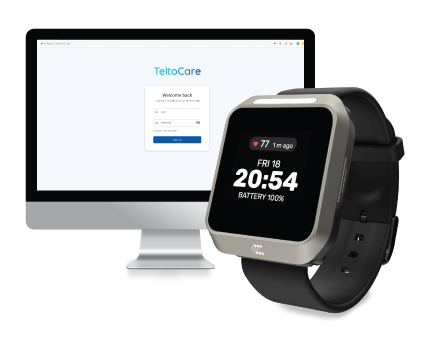
TeltoCare is used to display elecrocardiogram and heart rate data collected by TeltoHeart and transmitted by the TeltoHeart mobile application for further analysis and interpretation by qualified clinicians.
TeltoCare is reachable via: https://teltocare.com
How to identify a legitimate TeltoCare website
How to identify that you are entering a legitimate TeltoCare website

|
Check the URL: Look at the website URL to ensure it is spelled correctly and matches the website you intended to visit. Phishing scam websites often use similar-looking URLs to trick users into thinking they are on a legitimate website. |

|
Check for SSL encryption: Look for the padlock icon or "https" in the website address to confirm the website uses SSL encryption. Phishing scam websites often do not have SSL encryption or may have invalid SSL certificates. |

|
Look for branding inconsistencies: Check for any inconsistencies in the branding, logos, or design of the website, as phishing scam websites often use inaccurate or outdated branding to appear legitimate. |

Compatibility
Compatibility
A computer or any device with a web browser is compatible with:
- Mozilla Firefox browser v114 or newer
- Google Chrome browser v100 or newer
- Safari browser v16.5 or newer

Note:
- Using a browser version earlier than specified might result in reduced functionality or compatibility issues.
- If you are using a browser not listed here, you might experience compatibility issues. We recommend switching to one of the supported browsers for a better experience.
- Always ensure that your browser is up-to-date for the best security and performance.
Data transfer to TeltoCare web platform
Data Transfer to TeltoCare Web Platform
When the TeltoHeart mobile application is running in the background, data collected by the TeltoHeart smart wearable is scheduled to transfer to the TeltoCare web platform automatically on an hourly basis. This automatic transfer ensures that your health data remains up-to-date and readily available for analysis and management on the TeltoCare platform.
Additionally, users have the option to manually initiate a data sync through the TeltoHeart mobile application. By tapping the SYNC NOW button within the app, users can trigger an immediate transfer of collected data to the TeltoCare web platform, allowing them to ensure their latest health information is promptly uploaded regardless of the scheduled hourly transfer.

TeltoCare hierarchy
TeltoCare hierarchy
TeltoCare's hierarchical structure outlines the different roles and responsibilities within the TeltoCare ecosystem, from high-level administrative functions to specialised roles tailored to specific organisational levels and user types.
TeltoCare permissions
| Permission | Distributor Admin |
Distributor Sales |
Distributor Support |
Hospital Admin |
Hospital Support |
Doctor | Patient |
|---|---|---|---|---|---|---|---|
| Create / delete / suspend / unsuspend / restore / edit permissions for users | Admin Users | Sales Users | Support Users | Admin Users | Support Users | N/A | N/A |
| Edit information (including mandatory and non-mandatory) | Distributor Admin | Distributor Sales | Distributor Support | Hospital Admin | Hospital Support | Doctor | N/A |
| Suspend, delete, unsuspend, and restore distributors | Yes | No | No | No | No | No | N/A |
| Suspend, delete, unsuspend, and restore hospitals | Yes | No | No | No | No | No | N/A |
| See internal users | Yes | Yes | Yes | Yes | Yes | Yes | No |
| See the list of distributors (all) | Yes | Yes | Yes | No | No | No | No |
| See the list of hospitals (all) | Yes | Yes | Yes | Yes | Yes | Yes | No |
| See the statistics dashboard | Distributors | Distributors | Distributors | Hospitals | Hospitals | Hospitals | N/A |
| Get usage history | Telemedic & Distributor | No | No | Hospital & Distributor | No | Hospital | No |
| Edit patient information | No | No | No | No | No | Yes | Own |
| Edit doctor information | No | No | No | No | No | Yes | No |
| View / download personal and medical information | No | No | No | No | No | No | Yes |
| Delete personal and medical data | No | No | No | No | No | No | Yes |
TeltoCare login
TeltoCare login
|
|
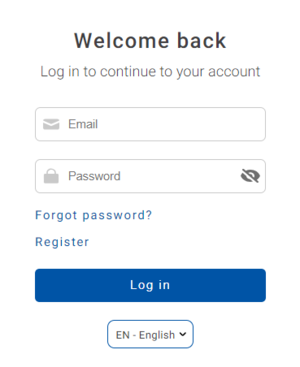
Open a web browser and go to https://teltocare.com. |
|
|
Enter your email and password in the login fields. |
|
|
If it is your first time using the platform, sign in using the email address and temporary password sent to your email. |


|
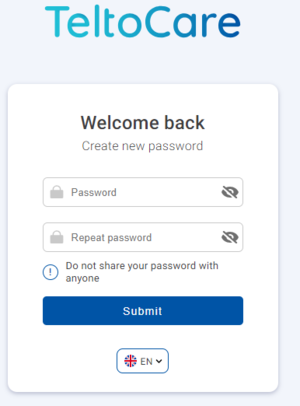
TeltoCare will prompt you to change the temporary password to your preferred one. |

|
Once your preferred password is set, you will be able to log in to the TeltoCare distributor environment. |
Register as a patient
|
|
Visit https://teltocare.com. |
|
|
Click Register. |
|
|
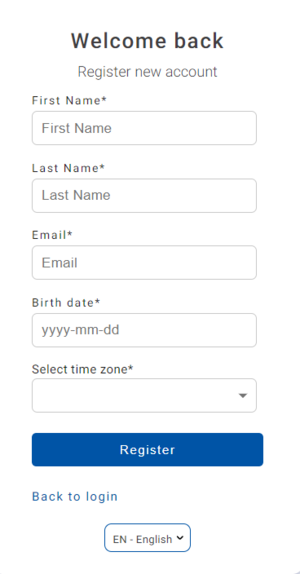
Fill in the required information. |
|
|
Click Register to complete the registration. |
|
|
After registration, fill in your login details in the TeltoHeart mobile application to Log in. |
Distributor's environment
Distributor's environment
Within the TeltoCare platform, distributors have the ability to create accounts for hospitals. As part of their environment, distributors facilitate the onboarding process for healthcare professionals who will provide medical services through the platform.

Navigation bar

User list
|
|
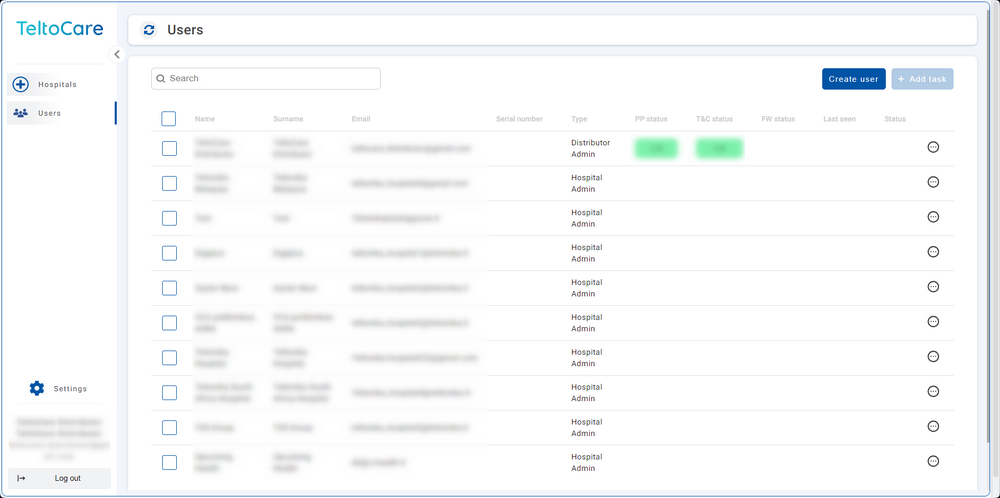
The User list provides the ability to view contact details, including names, surnames, phone numbers, emails, and affiliated hospital. |
|
|
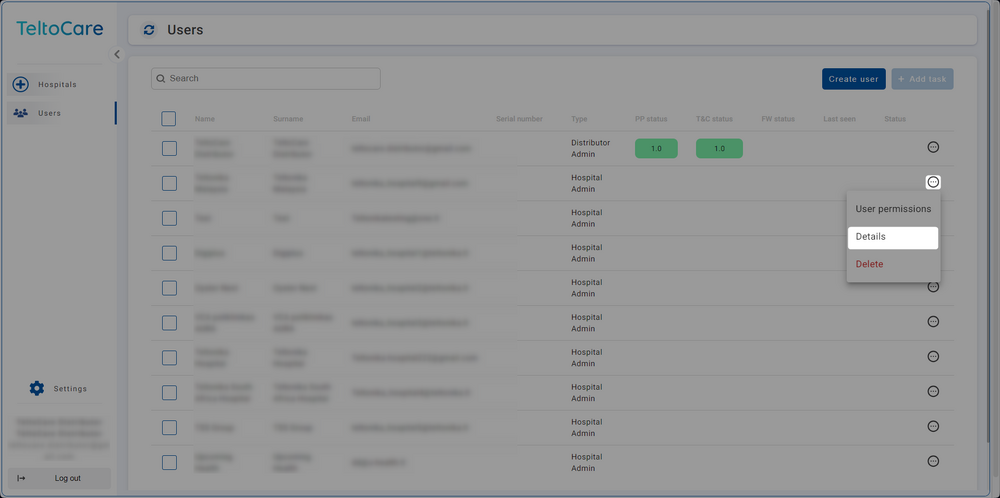
Click ... and select Details to view a hospital's patient list. |
Create a Hospital environment
|
|
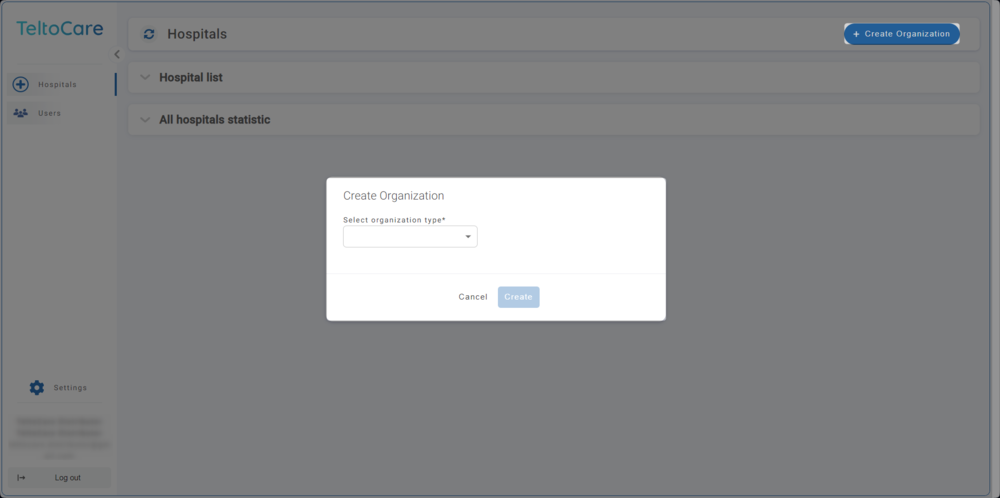
Click the Create Organization button in the top right to create a Hospital account. |
|
|
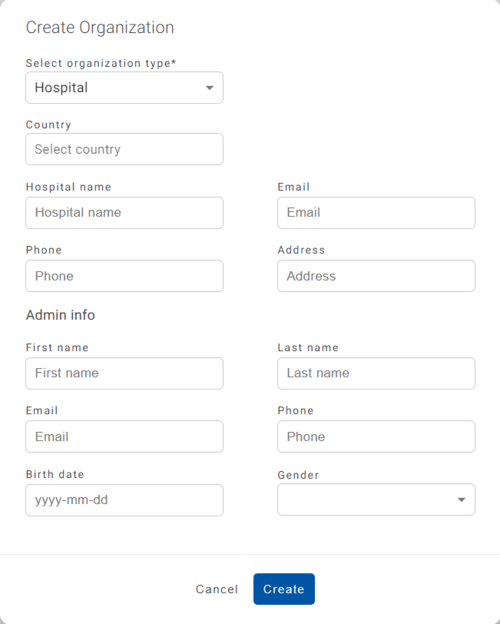
Enter the required information and click Create to establish the Hospital account. Once created, an invitation email will be sent. |
Hospital environment
Hospital environment
The hospital environment provides the ability to view a full list of the hospital's doctors and patients, create new doctor accounts, and view assigned patients along with their medical data such as events, electrocardiogram readings, atrial fibrillation events, and heart rate.

Navigation bar

Create user
|
|
Click the Create button to set up a new patient or doctor account. |
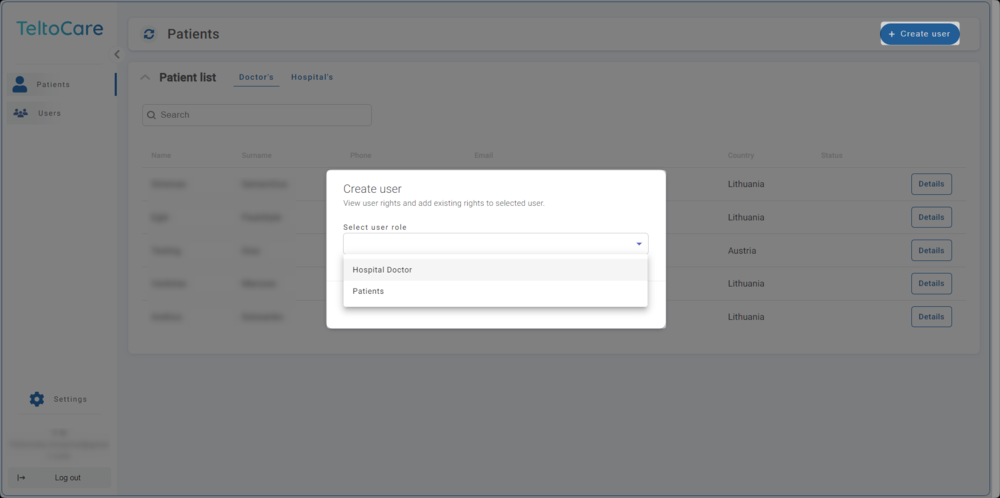
|
|
Enter the required information and click Create to establish the account. Once created, an invitation email will be sent to the provided email address. |
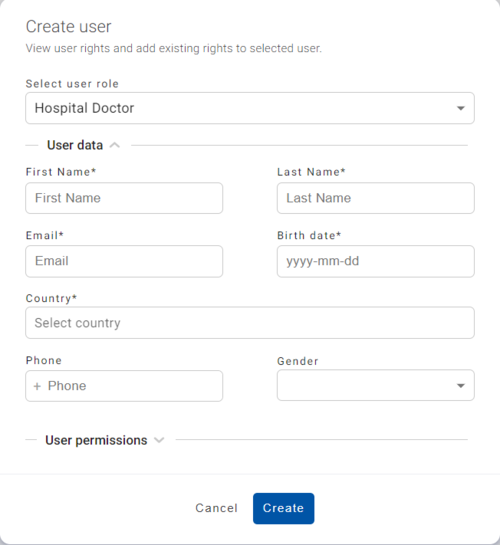
|
|
Select the permissions the user should have. |
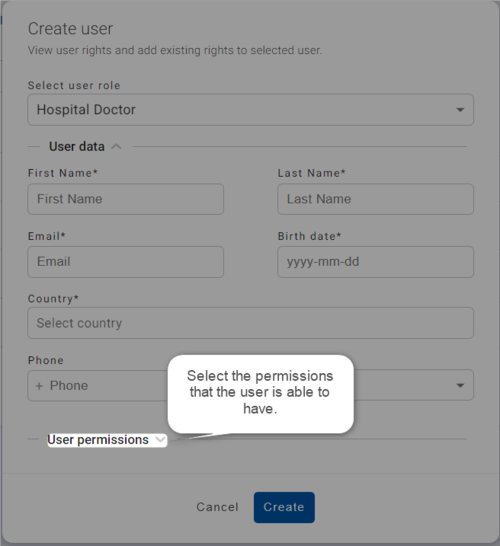
Doctor environment
Doctor environment
Doctors within the TeltoCare platform have access to specific patient information and data for medical purposes. They are authorised to view patients' medical records, personal information, and ECG measurement data, enabling accurate diagnoses and appropriate treatment recommendations.

Navigation bar
Create user
|
|
Click the Create button to set up a new patient or doctor account. |
|
|
Enter the required information and click Create to establish the account. Once created, an invitation email will be sent. |
|
|
Select the permissions the user should have. |
Patient list
|
|
The patient list provides the ability to view patient contact details, including names, surnames, phone numbers, emails, and country. |
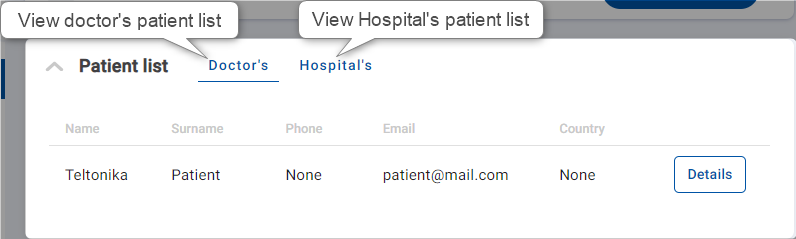
|
|
Click on the first tab to view a patient's contact details. |
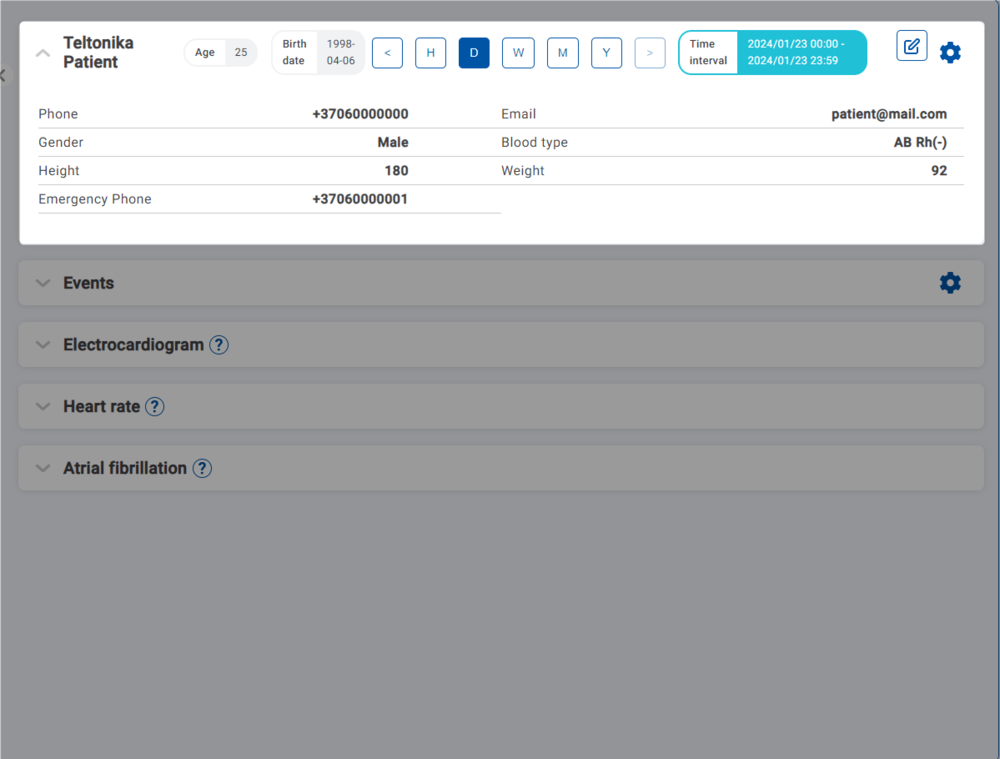
Time interval
|
|
Choose a time frame to view data. You can select by hour, day, week, month, or year, or use the < and > icons to navigate. |
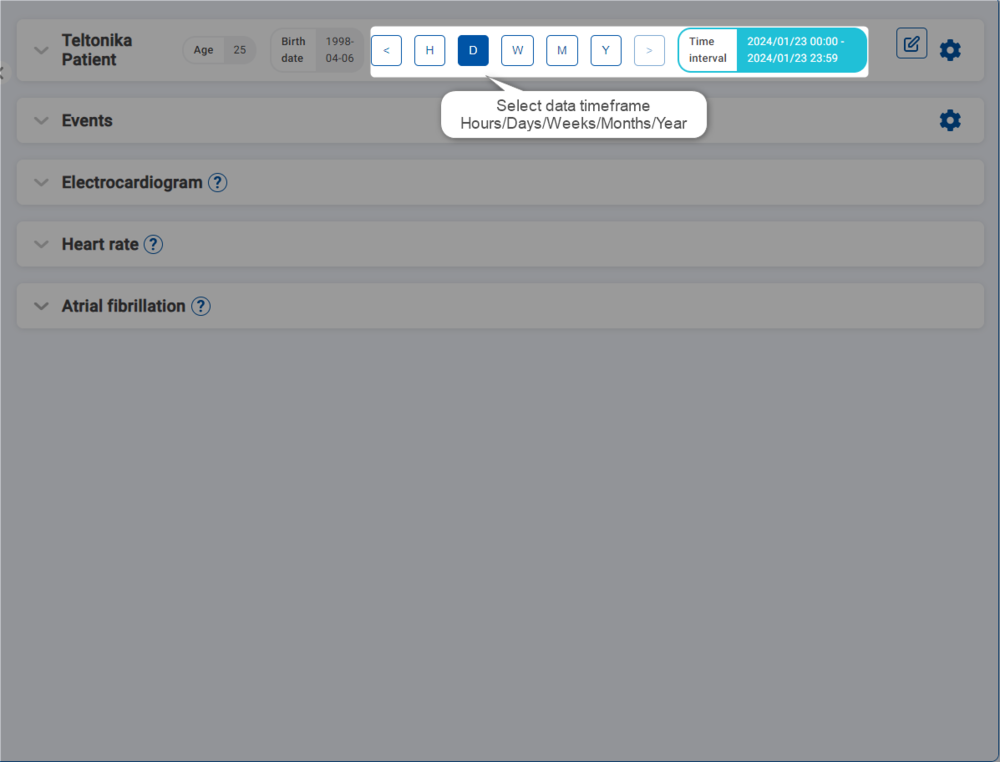
|
|
You can also manually select a time interval and choose a specific date. |

Edit patient's information
Tap the pencil icon to edit a patient's information. Click Edit to confirm the changes.

Delete a patient
To delete a patient's account, click the gear icon and select Delete Patient.

Patient events
Click the Events tab to view the patient's heart rate events. To configure heart rate events and add thresholds, tap the gear icon and click Add Thresholds.

Patient's electrocardiogram
Review the ECG recordings displayed on the Electrocardiogram tab to access data related to the patient's electrocardiogram.

Caliper tool
The Caliper Tool is a feature designed to streamline the analysis of ECG waveforms. It allows users to measure the time interval between two chosen points on the ECG waveform, simplifying beat-to-beat interval measurement and enhancing the precision of ECG feature analysis.
|
|
Open the Electrocardiogram tab and select the desired ECG waveform. |
|
|
Locate the ECG Caliper Tool and position the calipers on the two points you wish to measure — typically R-waves for RR intervals. |
|
|
The tool will automatically calculate and display the time interval. |
|
|
To start a new measurement, use the reset function. |
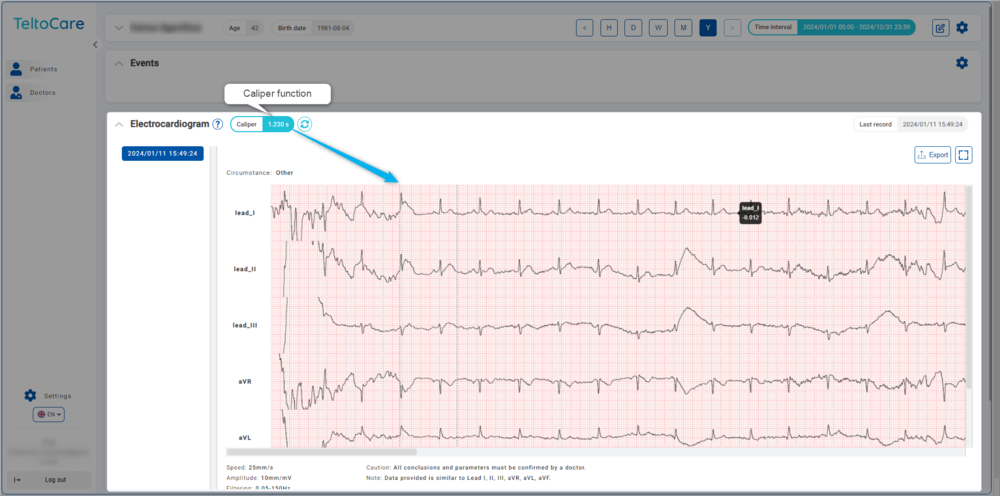
Heart rate
The Heart Rate tab displays both minimum and maximum heart rates, as well as the dates on which these measurements were taken. Heart rate is measured in beats per minute (BPM).

Atrial fibrillation
TeltoCare offers a dedicated Atrial Fibrillation Monitoring feature to assist in managing atrial fibrillation conditions effectively. When you access the Atrial Fibrillation tab, you will find the following information for each episode:
- Date: The date on which each episode occurred.
- Duration: How long each atrial fibrillation episode lasted.
- Min Heart Rate: The minimum heart rate recorded during each episode.
- Max Heart Rate: The maximum heart rate during each episode.
- Heart Rate Average: The average heart rate during each episode.
Enabling Atrial Fibrillation
|
|
On your TeltoHeart, tap the side button to open the menu and select the AFib function. |
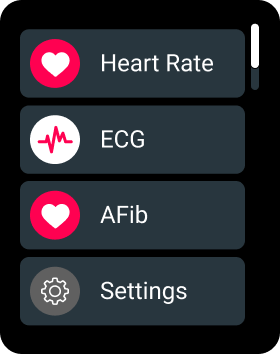
|
|
Tap Active to activate the atrial fibrillation function. |
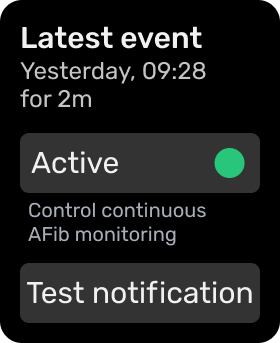
Accessing detailed records
|
|
Each episode listed includes a dedicated button. Click it to access the corresponding ECG record, allowing you to visually examine the electrical activity of the patient's heart during the episode. |
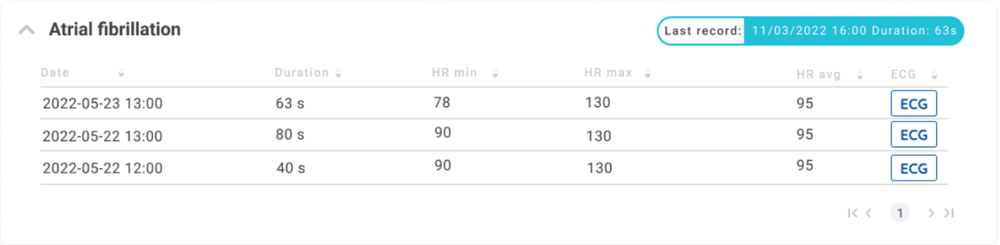
TeltoCare markings
Certifications
 |
Manufacturer |
 |
Additional information
Product Page
Changelog
TeltoHeart Manual
PROMOTIONAL MATERIAL
CERTIFICATES
All newest certificates can be found on our Certifications and Approvals wiki page.