Setting up Two-Factor Authentication (2FA) in Partner Portal/HelpDesk
From Teltonika Telemedic Wiki
General Information > Setting up Two-Factor Authentication (2FA) in Partner Portal/HelpDesk
Account Security
Two-Factor Authentication (2FA)
How to set up two-factor authentication for your Partner Portal / HelpDesk account.
📄 Introduction
Two-factor authentication (2FA) is a security process that requires users to provide two different authentication factors to verify their identity. These factors typically fall into three categories: something you know (like a password), something you have (like a smartphone or token), and something you are (like a fingerprint or iris scan). By requiring two different types of authentication, 2FA significantly enhances security compared to using a password alone.
2FA was introduced in Partner Portal / HelpDesk to enhance security by adding an extra layer of protection against unauthorized access to sensitive data that may be shared, thereby mitigating the risk of data breaches and ensuring compliance with industry regulations.
✅ Things You'll Need
📱
Your smartphone
🔐
An authenticator app (Google Play Store or Apple App Store)
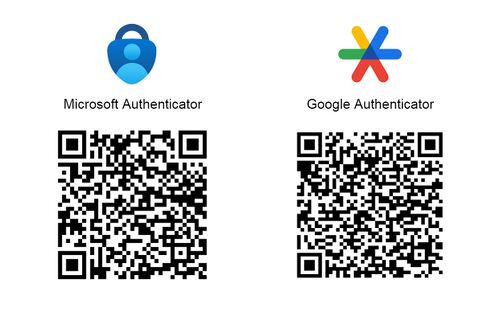
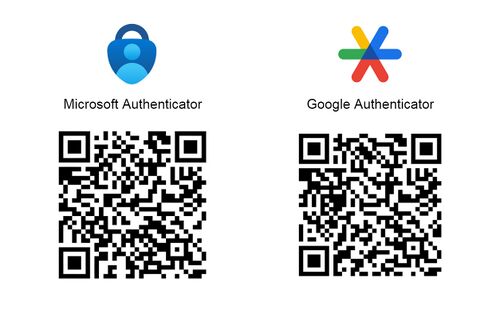
📥 Download the Authenticator App
Android OS — Scan to Download
Apple iOS — Scan to Download
🛠️ Setting Up 2FA
1
Download and Install the Authenticator App
Microsoft Authenticator, Google Authenticator, or similar.
Open the app store on your smartphone (Google Play Store for Android or Apple App Store for iPhone).
Search for e.g. "Google Authenticator" and install the app.
Depending on the app chosen, you may need to create or sign in with your Google or Microsoft account.
Log in to your account using your username and password.
3
Enable 2FA and Proceed with Setup
After a successful login attempt, you will be presented with a pop-up window in the middle of the screen. This window will contain a large QR code and instructions to set up 2FA using an authenticator app. Leave this window open.
4
Sync Partner Portal / HelpDesk with Authenticator App
Launch the Authenticator app on your smartphone.
Press "Add" and choose "Scan QR Code": use your phone's camera to scan the QR code displayed in the 2FA setup window on your computer screen.
💡 If desired, the secret key can be entered manually, but we recommend scanning the QR code with your camera.
5
Verify and Complete Setup
After scanning the QR code or entering the secret key, a new account will be added to your Authenticator app.
The app will generate a unique 6-digit code that changes every minute.
Enter the code displayed in your Authenticator app into the Partner Portal / HelpDesk window.
✅ All set! Once you enter the correct code, 2FA setup is complete. From now on, with every new login to Partner Portal / HelpDesk, you'll be asked to enter the code displayed in your Authenticator app.