
FAQ: Difference between revisions
No edit summary |
|||
| Line 1: | Line 1: | ||
[[Category:TeltoHeart]] | |||
<div style="max-width:960px;margin:0 auto;font-family:-apple-system,BlinkMacSystemFont,'Segoe UI',Roboto,sans-serif;"> | |||
=== | <!-- ═══ PAGE TITLE ═══ --> | ||
{| | <div style="text-align:center;padding:32px 0 24px;"> | ||
| style="width: | <div style="font-size:2.2rem;font-weight:700;color:#0054A6;margin-bottom:6px;">TeltoHeart</div> | ||
|| '''If your TeltoHeart has recently been turned off and you are having trouble turning it back on:'''<br> | <div style="color:#667085;font-size:1rem;">Frequently Asked Questions & Troubleshooting</div> | ||
Wait | </div> | ||
<!-- ═══════════════════════════════════ | |||
SECTION: POWER & CHARGING | |||
════════════════════════════════════ --> | |||
<div style="background:#0054A6;color:#fff;font-size:1rem;font-weight:700;padding:10px 20px;border-radius:10px 10px 0 0;margin-top:8px;">⚡ Device Power & Charging Issues</div> | |||
<div style="border:1px solid #e4e7ec;border-top:none;border-radius:0 0 10px 10px;margin-bottom:24px;overflow:hidden;"> | |||
<!-- subsection header --> | |||
<div style="background:#f0f5ff;border-bottom:1px solid #e4e7ec;padding:10px 20px;font-weight:700;color:#0054A6;font-size:0.95rem;">TeltoHeart is not turning on</div> | |||
<div style="padding:16px 20px;"> | |||
<div style="background:#fffbf5;border-left:4px solid #ff9800;border-radius:8px;padding:4px 0;margin-bottom:4px;"> | |||
{|style="border:none;background:none;width:100%;" | |||
|style="width:50px;padding:10px;vertical-align:top;"|[[Image:Nr1.png|36px|link=]] | |||
|style="padding:10px;vertical-align:top;"|'''If your TeltoHeart has recently been turned off and you are having trouble turning it back on:'''<br>Wait at least one minute before attempting to turn it back on, as it may need time to fully power down. | |||
|} | |} | ||
{| | </div> | ||
| style="width: | <div style="background:#fffbf5;border-left:4px solid #ff9800;border-radius:8px;padding:4px 0;margin-bottom:4px;"> | ||
|| '''Power on:''' <br> | {|style="border:none;background:none;width:100%;" | ||
'''a)''' Hold the side button for at least 10 seconds | |style="width:50px;padding:10px;vertical-align:top;"|[[Image:Nr2.png|36px|link=]] | ||
'''b)''' | |style="padding:10px;vertical-align:top;"|'''Power on:'''<br>'''a)''' Hold the side button for at least 10 seconds.<br>'''b)''' Place TeltoHeart on the charging dock. | ||
|} | |} | ||
{| | </div> | ||
| style="width: | <div style="background:#fffbf5;border-left:4px solid #ff9800;border-radius:8px;padding:4px 0;margin-bottom:4px;"> | ||
|| '''Charge the | {|style="border:none;background:none;width:100%;" | ||
|style="width:50px;padding:10px;vertical-align:top;"|[[Image:Nr3.png|36px|link=]] | |||
|style="padding:10px;vertical-align:top;"|'''Charge the device:'''<br>Ensure TeltoHeart is charged. Connect it to the charging dock and verify it is charging. If not, try a different cable or adapter. | |||
|} | |} | ||
{| | </div> | ||
| style="width: | <div style="background:#fffbf5;border-left:4px solid #ff9800;border-radius:8px;padding:4px 0;margin-bottom:4px;"> | ||
|| '''Check | {|style="border:none;background:none;width:100%;" | ||
|style="width:50px;padding:10px;vertical-align:top;"|[[Image:Nr4.png|36px|link=]] | |||
|style="padding:10px;vertical-align:top;"|'''Check charging connections:'''<br>Ensure charging contacts on TeltoHeart and the dock are clean and free of debris. Gently clean with a soft, dry cloth if needed. | |||
|} | |} | ||
{| | </div> | ||
| style="width: | <div style="background:#fffbf5;border-left:4px solid #ff9800;border-radius:8px;padding:4px 0;margin-bottom:4px;"> | ||
|| '''Check the button:''' <br>Make sure the button | {|style="border:none;background:none;width:100%;" | ||
|style="width:50px;padding:10px;vertical-align:top;"|[[Image:Nr5 - Copy.png|36px|link=]] | |||
|style="padding:10px;vertical-align:top;"|'''Check the button:'''<br>Make sure the side button is not stuck. Press it gently a few times to verify it functions properly. | |||
|} | |} | ||
{| | </div> | ||
| style="width: | <div style="background:#fffbf5;border-left:4px solid #ff9800;border-radius:8px;padding:4px 0;"> | ||
|| '''Contact customer support:''' <br>If none of the above | {|style="border:none;background:none;width:100%;" | ||
|style="width:50px;padding:10px;vertical-align:top;"|[[Image:Nr6.png|36px|link=]] | |||
|style="padding:10px;vertical-align:top;"|'''Contact customer support:'''<br>If none of the above steps work, contact customer support for further assistance. | |||
|} | |} | ||
</div> | |||
</div> | |||
<!-- FAQ rows --> | |||
<div style="border-top:1px solid #e4e7ec;"> | |||
<div style="padding:14px 20px;border-bottom:1px solid #f0f0f0;"> | |||
<div style="font-weight:700;color:#1a1a2e;margin-bottom:4px;">How to turn on TeltoHeart?</div> | |||
Hold the button for at least 10 seconds or place it on the charging adapter. | <div style="color:#374151;font-size:0.9rem;">Hold the button for at least 10 seconds, or place it on the charging adapter.</div> | ||
</div> | |||
<div style="padding:14px 20px;"> | |||
<div style="font-weight:700;color:#1a1a2e;margin-bottom:4px;">Why does the battery drain quickly?</div> | |||
<div style="color:#374151;font-size:0.9rem;">Battery life depends on ECG recording frequency, how often data is transferred to the mobile app, screen brightness, and how frequently the screen is activated.</div> | |||
</div> | |||
</div> | |||
</div> | |||
<!-- ═══════════════════════════════════ | |||
SECTION: CONNECTIVITY & BLUETOOTH | |||
════════════════════════════════════ --> | |||
<div style="background:#0054A6;color:#fff;font-size:1rem;font-weight:700;padding:10px 20px;border-radius:10px 10px 0 0;margin-top:8px;">📶 Connectivity, Pairing & Bluetooth Issues</div> | |||
<div style="border:1px solid #e4e7ec;border-top:none;border-radius:0 0 10px 10px;margin-bottom:24px;overflow:hidden;"> | |||
<div style="background:#f0f5ff;border-bottom:1px solid #e4e7ec;padding:10px 20px;font-weight:700;color:#0054A6;font-size:0.95rem;">Failed to pair the device</div> | |||
< | <div style="padding:4px 20px 16px;"> | ||
{| | <div style="color:#374151;font-size:0.9rem;padding:12px 0 8px;">If your device and phone fail to pair, follow these steps:</div> | ||
| style="width: | <div style="background:#fffbf5;border-left:4px solid #ff9800;border-radius:8px;padding:4px 0;margin-bottom:4px;"> | ||
|| '''Check compatibility:'''<br>Ensure | {|style="border:none;background:none;width:100%;" | ||
|style="width:50px;padding:10px;vertical-align:top;"|[[Image:Nr1.png|36px|link=]] | |||
|style="padding:10px;vertical-align:top;"|'''Check compatibility:'''<br>Ensure the TeltoHeart app is used with iOS 14 or later / Android 10 or later. | |||
|} | |} | ||
{| | </div> | ||
| style="width: | <div style="background:#fffbf5;border-left:4px solid #ff9800;border-radius:8px;padding:4px 0;margin-bottom:4px;"> | ||
|| '''Check Bluetooth | {|style="border:none;background:none;width:100%;" | ||
|style="width:50px;padding:10px;vertical-align:top;"|[[Image:Nr2.png|36px|link=]] | |||
|style="padding:10px;vertical-align:top;"|'''Check Bluetooth settings:'''<br>Verify Bluetooth is turned on and the device is in pairing mode. | |||
|} | |} | ||
{| | </div> | ||
| style="width: | <div style="background:#fffbf5;border-left:4px solid #ff9800;border-radius:8px;padding:4px 0;margin-bottom:4px;"> | ||
|| '''Forget and | {|style="border:none;background:none;width:100%;" | ||
|style="width:50px;padding:10px;vertical-align:top;"|[[Image:Nr3.png|36px|link=]] | |||
|style="padding:10px;vertical-align:top;"|'''Forget and re-pair:'''<br>If previously paired, forget the device from your phone's Bluetooth settings and re-pair from scratch. | |||
|} | |} | ||
{| | </div> | ||
| style="width: | <div style="background:#fffbf5;border-left:4px solid #ff9800;border-radius:8px;padding:4px 0;"> | ||
|| '''Restart | {|style="border:none;background:none;width:100%;" | ||
|style="width:50px;padding:10px;vertical-align:top;"|[[Image:Nr4.png|36px|link=]] | |||
|style="padding:10px;vertical-align:top;"|'''Restart both devices:'''<br>Turn off both your device and phone, then turn them back on. | |||
|} | |} | ||
</div> | |||
</div> | |||
<div style="background:#f0f5ff;border-top:1px solid #e4e7ec;border-bottom:1px solid #e4e7ec;padding:10px 20px;font-weight:700;color:#0054A6;font-size:0.95rem;">Paired device prior to registering / logging in</div> | |||
< | <div style="padding:4px 20px 16px;"> | ||
{| | <div style="color:#374151;font-size:0.9rem;padding:12px 0 8px;">If you paired via phone Bluetooth settings instead of the TeltoHeart app, follow these steps:</div> | ||
| style="width: | <div style="background:#fffbf5;border-left:4px solid #ff9800;border-radius:8px;padding:4px 0;margin-bottom:4px;"> | ||
|| '''Unpair TeltoHeart:'''<br> | {|style="border:none;background:none;width:100%;" | ||
|style="width:50px;padding:10px;vertical-align:top;"|[[Image:Nr1.png|36px|link=]] | |||
|style="padding:10px;vertical-align:top;"|'''Unpair TeltoHeart:'''<br>Go to Bluetooth settings on both devices and select Forget / Unpair. | |||
|} | |} | ||
{| | </div> | ||
| style="width: | <div style="background:#fffbf5;border-left:4px solid #ff9800;border-radius:8px;padding:4px 0;margin-bottom:4px;"> | ||
|| '''Download the TeltoHeart application:'''<br> | {|style="border:none;background:none;width:100%;" | ||
|style="width:50px;padding:10px;vertical-align:top;"|[[Image:Nr2.png|36px|link=]] | |||
|style="padding:10px;vertical-align:top;"|'''Download the TeltoHeart application:'''<br>Log in, select '''Pair Device''' and follow the steps in [[How_to_Pair_TeltoHeart_with_TeltoHeart_mobile_application|How to pair TeltoHeart with TeltoHeart application]]. | |||
|} | |} | ||
{| | </div> | ||
| style="width: | <div style="background:#fffbf5;border-left:4px solid #ff9800;border-radius:8px;padding:4px 0;"> | ||
|| '''Check for firmware updates:'''<br>After pairing | {|style="border:none;background:none;width:100%;" | ||
|style="width:50px;padding:10px;vertical-align:top;"|[[Image:Nr3.png|36px|link=]] | |||
|style="padding:10px;vertical-align:top;"|'''Check for firmware updates:'''<br>After pairing through the app, check for and install any available firmware updates. | |||
|} | |} | ||
</div> | |||
</div> | |||
<div style="border-top:1px solid #e4e7ec;"> | |||
<div style="padding:14px 20px;border-bottom:1px solid #f0f0f0;"> | |||
<div style="font-weight:700;color:#1a1a2e;margin-bottom:4px;">TeltoHeart application cannot find a firmware update</div> | |||
<div style="color:#374151;font-size:0.9rem;"> | |||
* Try logging out and back in to the application.<br> | |||
* Delete the application and re-download it from the app store. | |||
</div> | |||
</div> | |||
</div> | |||
</div> | |||
<!-- ═══════════════════════════════════ | |||
SECTION: DATA SYNC | |||
════════════════════════════════════ --> | |||
<div style="background:#0054A6;color:#fff;font-size:1rem;font-weight:700;padding:10px 20px;border-radius:10px 10px 0 0;margin-top:8px;">🔄 Data Sync & Visibility Issues</div> | |||
<div style="border:1px solid #e4e7ec;border-top:none;border-radius:0 0 10px 10px;margin-bottom:24px;overflow:hidden;"> | |||
<div style="padding:14px 20px;border-bottom:1px solid #f0f0f0;"> | |||
<div style="font-weight:700;color:#1a1a2e;margin-bottom:4px;">Why are there no data on the TeltoCare platform?</div> | |||
<div style="color:#374151;font-size:0.9rem;">Ensure the device and mobile phone are connected via Bluetooth, then press '''SYNC NOW''' in the TeltoHeart app. Data also syncs automatically in the background at least once per hour when Bluetooth is connected.</div> | |||
</div> | |||
<div style="background:#f0f5ff;border-bottom:1px solid #e4e7ec;padding:10px 20px;font-weight:700;color:#0054A6;font-size:0.95rem;">TeltoHeart is not sending data</div> | |||
< | <div style="padding:4px 20px 16px;"> | ||
{| | <div style="background:#fffbf5;border-left:4px solid #ff9800;border-radius:8px;padding:4px 0;margin-bottom:4px;"> | ||
| style="width: | {|style="border:none;background:none;width:100%;" | ||
|| ''' | |style="width:50px;padding:10px;vertical-align:top;"|[[Image:Nr1.png|36px|link=]] | ||
|style="padding:10px;vertical-align:top;"|'''Check pairing:'''<br>Ensure TeltoHeart is properly paired with the app. If not, follow [[How_to_Pair_TeltoHeart_with_TeltoHeart_mobile_application|How to pair TeltoHeart with TeltoHeart application]]. | |||
|} | |} | ||
{| | </div> | ||
| style="width: | <div style="background:#fffbf5;border-left:4px solid #ff9800;border-radius:8px;padding:4px 0;margin-bottom:4px;"> | ||
|| '''Check | {|style="border:none;background:none;width:100%;" | ||
|style="width:50px;padding:10px;vertical-align:top;"|[[Image:Nr2.png|36px|link=]] | |||
|style="padding:10px;vertical-align:top;"|'''Check phone storage:'''<br>If phone storage is full, it may not process incoming data. Delete unnecessary files or apps to free up space. | |||
|} | |} | ||
{| | </div> | ||
| style="width: | <div style="background:#fffbf5;border-left:4px solid #ff9800;border-radius:8px;padding:4px 0;"> | ||
|| '''Contact customer support:'''<br>If none of the above | {|style="border:none;background:none;width:100%;" | ||
|style="width:50px;padding:10px;vertical-align:top;"|[[Image:Nr3.png|36px|link=]] | |||
|style="padding:10px;vertical-align:top;"|'''Contact customer support:'''<br>If none of the above steps work, contact the TeltoCare customer support team. | |||
|} | |} | ||
</div> | |||
</div> | |||
<div style="border-top:1px solid #e4e7ec;padding:14px 20px;border-bottom:1px solid #f0f0f0;"> | |||
<div style="font-weight:700;color:#1a1a2e;margin-bottom:4px;">Cannot see my data</div> | |||
<div style="color:#374151;font-size:0.9rem;">Use '''SYNC NOW''' in the TeltoHeart app to manually trigger a data transfer to TeltoCare. Although data syncs periodically, this option ensures immediate availability of your measurements.</div> | |||
</div> | |||
<!-- Note box --> | |||
<div style="margin:0 20px 16px;"> | |||
<div style="background:#E7F1FE;border:1px solid #0054A6;border-radius:8px;padding:12px 16px;display:flex;align-items:flex-start;gap:10px;margin-top:14px;"> | |||
{|style="border:none;background:none;width:100%;" | |||
| style="width: 40px; | |style="width:40px;vertical-align:top;padding-top:2px;"|[[File:Note_icon.png|28px|link=]] | ||
|| '''Please note:''' | |style="vertical-align:top;"|'''Please note:''' Data upload may take up to 15 minutes. | ||
|} | |} | ||
</div> | |||
</div> | |||
[[File:Group70665.png|center|280px]] | |||
<div style="padding:14px 20px;border-top:1px solid #e4e7ec;"> | |||
<div style="font-weight:700;color:#1a1a2e;margin-bottom:4px;">Where can I see the data?</div> | |||
<div style="color:#374151;font-size:0.9rem;">The device displays minimum, maximum, and current heart rate values, plus the time of the last suspected AFib episode. In TeltoCare you can also view ECG recordings, AFib burden, and more.</div> | |||
</div> | |||
</div> | |||
<!-- ═══════════════════════════════════ | |||
SECTION: HEART RATE & WRIST | |||
════════════════════════════════════ --> | |||
<div style="background:#0054A6;color:#fff;font-size:1rem;font-weight:700;padding:10px 20px;border-radius:10px 10px 0 0;margin-top:8px;">❤️ Heart Rate & Wrist Detection Issues</div> | |||
<div style="border:1px solid #e4e7ec;border-top:none;border-radius:0 0 10px 10px;margin-bottom:24px;overflow:hidden;"> | |||
<div style="background:#f0f5ff;border-bottom:1px solid #e4e7ec;padding:10px 20px;font-weight:700;color:#0054A6;font-size:0.95rem;">Heart Rate signal missing</div> | |||
< | <div style="padding:12px 20px 4px;"> | ||
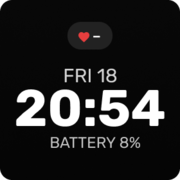
[[Image:TeltoHeart_main_screen.png| | <div style="color:#374151;font-size:0.9rem;margin-bottom:12px;">If the sensor has difficulty detecting heart rate, "–" appears on screen. TeltoHeart prioritizes resting measurements to minimize motion artifacts and provide reliable data.</div> | ||
[[Image:TeltoHeart_main_screen.png|180px|center|link=]] | |||
<div style="color:#374151;font-size:0.9rem;margin:12px 0 8px;">Follow these steps to troubleshoot:</div> | |||
<div style="background:#fffbf5;border-left:4px solid #ff9800;border-radius:8px;padding:4px 0;margin-bottom:4px;"> | |||
{|style="border:none;background:none;width:100%;" | |||
|style="width:50px;padding:10px;vertical-align:top;"|[[Image:Nr1.png|36px|link=]] | |||
|style="padding:10px;vertical-align:top;"|Check that TeltoHeart is worn correctly: [[How_to_wear_TeltoHeart|How to wear TeltoHeart]] | |||
{| | |||
| style="width: | |||
|| Check | |||
|} | |} | ||
{| | </div> | ||
| style="width: | <div style="background:#fffbf5;border-left:4px solid #ff9800;border-radius:8px;padding:4px 0;margin-bottom:4px;"> | ||
|| Try tightening or loosening the band | {|style="border:none;background:none;width:100%;" | ||
|style="width:50px;padding:10px;vertical-align:top;"|[[Image:Nr2.png|36px|link=]] | |||
|style="padding:10px;vertical-align:top;"|Try tightening or loosening the band for a proper fit and re-check for signal. | |||
|} | |} | ||
{| | </div> | ||
| style="width: | <div style="background:#fffbf5;border-left:4px solid #ff9800;border-radius:8px;padding:4px 0;margin-bottom:4px;"> | ||
|| Ensure | {|style="border:none;background:none;width:100%;" | ||
|style="width:50px;padding:10px;vertical-align:top;"|[[Image:Nr3.png|36px|link=]] | |||
|style="padding:10px;vertical-align:top;"|Ensure LED contacts are free from dirt. If the issue persists, restart TeltoHeart: [[How_to_power_off_or_restart_TeltoHeart|How to power off or restart TeltoHeart]] | |||
|} | |} | ||
{| | </div> | ||
| style="width: | <div style="background:#fffbf5;border-left:4px solid #ff9800;border-radius:8px;padding:4px 0;margin-bottom:12px;"> | ||
|| Make sure | {|style="border:none;background:none;width:100%;" | ||
|style="width:50px;padding:10px;vertical-align:top;"|[[Image:Nr4.png|36px|link=]] | |||
|style="padding:10px;vertical-align:top;"|Make sure there is no movement during measurement. | |||
|} | |} | ||
</div> | |||
</div> | |||
<div style="background:#f0f5ff;border-top:1px solid #e4e7ec;border-bottom:1px solid #e4e7ec;padding:10px 20px;font-weight:700;color:#0054A6;font-size:0.95rem;">Failure to detect wrist</div> | |||
< | <div style="padding:4px 20px 16px;"> | ||
{| | <div style="color:#374151;font-size:0.9rem;padding:12px 0 8px;">TeltoHeart uses light-based sensors (PPG) and electrode leads to detect wrist presence. To ensure proper detection:</div> | ||
| style="width: | <div style="background:#fffbf5;border-left:4px solid #ff9800;border-radius:8px;padding:4px 0;margin-bottom:4px;"> | ||
|| '''Ensure | {|style="border:none;background:none;width:100%;" | ||
|style="width:50px;padding:10px;vertical-align:top;"|[[Image:Nr1.png|36px|link=]] | |||
|style="padding:10px;vertical-align:top;"|'''Ensure secure fit:'''<br>Secure TeltoHeart just above the wrist bone as illustrated in the user manual. | |||
|} | |} | ||
{| | </div> | ||
| style="width: | <div style="background:#fffbf5;border-left:4px solid #ff9800;border-radius:8px;padding:4px 0;margin-bottom:4px;"> | ||
|| '''Check for | {|style="border:none;background:none;width:100%;" | ||
|style="width:50px;padding:10px;vertical-align:top;"|[[Image:Nr2.png|36px|link=]] | |||
|style="padding:10px;vertical-align:top;"|'''Check for hair:'''<br>Excessive wrist hair may hinder optical sensors. Ensure skin beneath the device is unobstructed. | |||
|} | |} | ||
{| | </div> | ||
| style="width: | <div style="background:#fffbf5;border-left:4px solid #ff9800;border-radius:8px;padding:4px 0;margin-bottom:4px;"> | ||
|| '''Assess | {|style="border:none;background:none;width:100%;" | ||
|style="width:50px;padding:10px;vertical-align:top;"|[[Image:Nr3.png|36px|link=]] | |||
|style="padding:10px;vertical-align:top;"|'''Assess skin contact:'''<br>Remove anything obstructing direct skin contact, such as clothing or accessories. | |||
|} | |} | ||
{| | </div> | ||
| style="width: | <div style="background:#fffbf5;border-left:4px solid #ff9800;border-radius:8px;padding:4px 0;"> | ||
|| '''Verify | {|style="border:none;background:none;width:100%;" | ||
|style="width:50px;padding:10px;vertical-align:top;"|[[Image:Nr4.png|36px|link=]] | |||
|style="padding:10px;vertical-align:top;"|'''Verify positioning:'''<br>Wear the device approximately 1 cm above the wrist bone for proper sensor alignment. | |||
|} | |} | ||
</div> | |||
</div> | |||
<div style="border-top:1px solid #e4e7ec;padding:14px 20px;"> | |||
<div style="font-weight:700;color:#1a1a2e;margin-bottom:4px;">How to set heart rate frequency?</div> | |||
<div style="color:#374151;font-size:0.9rem;">The heart rate is displayed on the main screen and in the "Heart rate" app.</div> | |||
</div> | |||
</div> | |||
<!-- ═══════════════════════════════════ | |||
SECTION: ECG | |||
════════════════════════════════════ --> | |||
<div style="background:#0054A6;color:#fff;font-size:1rem;font-weight:700;padding:10px 20px;border-radius:10px 10px 0 0;margin-top:8px;">📈 ECG Related Issues</div> | |||
<div style="border:1px solid #e4e7ec;border-top:none;border-radius:0 0 10px 10px;margin-bottom:24px;overflow:hidden;"> | |||
<div style="padding:14px 20px;border-bottom:1px solid #f0f0f0;"> | |||
<div style="font-weight:700;color:#1a1a2e;margin-bottom:4px;">Why is the ECG signal of poor quality?</div> | |||
<div style="color:#374151;font-size:0.9rem;">During recording, stay still and ensure maximum contact between skin and electrodes. Apply enough pressure to keep muscles relaxed during measurement.</div> | |||
</div> | |||
<div style="padding:14px 20px;border-bottom:1px solid #f0f0f0;"> | |||
<div style="font-weight:700;color:#1a1a2e;margin-bottom:4px;">Why did the ECG recording stop by itself?</div> | |||
<div style="color:#374151;font-size:0.9rem;">The screen may have been activated by accidental touch. To prevent this, disable screen wake-up on lifting and on touch by swiping up on the main screen and opening the screen settings menu.</div> | |||
</div> | |||
<div style="background:#f0f5ff;border-top:1px solid #e4e7ec;border-bottom:1px solid #e4e7ec;padding:10px 20px;font-weight:700;color:#0054A6;font-size:0.95rem;">Incorrect ECG data</div> | |||
{| | <div style="padding:4px 20px 16px;"> | ||
| style="width: | <div style="background:#fffbf5;border-left:4px solid #ff9800;border-radius:8px;padding:4px 0;margin-top:8px;margin-bottom:4px;"> | ||
|| Ensure | {|style="border:none;background:none;width:100%;" | ||
|style="width:50px;padding:10px;vertical-align:top;"|[[Image:Nr1.png|36px|link=]] | |||
|style="padding:10px;vertical-align:top;"|Ensure measurements are taken correctly: [[Recording_an_ECG|Recording an ECG]] | |||
|} | |} | ||
{| | </div> | ||
| style="width: | <div style="background:#fffbf5;border-left:4px solid #ff9800;border-radius:8px;padding:4px 0;margin-bottom:4px;"> | ||
|| | {|style="border:none;background:none;width:100%;" | ||
|style="width:50px;padding:10px;vertical-align:top;"|[[Image:Nr2.png|36px|link=]] | |||
|style="padding:10px;vertical-align:top;"|Stay calm and avoid any movement during ECG measurement. | |||
|} | |} | ||
{| | </div> | ||
| style="width: | <div style="background:#fffbf5;border-left:4px solid #ff9800;border-radius:8px;padding:4px 0;margin-bottom:4px;"> | ||
|| | {|style="border:none;background:none;width:100%;" | ||
|style="width:50px;padding:10px;vertical-align:top;"|[[Image:Nr3.png|36px|link=]] | |||
|style="padding:10px;vertical-align:top;"|Keep electrodes clean. Dirt, sweat, or debris can interfere with readings. Clean sensors with a soft, dry cloth regularly. | |||
|} | |} | ||
{| | </div> | ||
| style="width: | <div style="background:#fffbf5;border-left:4px solid #ff9800;border-radius:8px;padding:4px 0;margin-bottom:4px;"> | ||
|| Excessive hair on the wrist or abdomen | {|style="border:none;background:none;width:100%;" | ||
|style="width:50px;padding:10px;vertical-align:top;"|[[Image:Nr4.png|36px|link=]] | |||
|style="padding:10px;vertical-align:top;"|Excessive hair on the wrist or abdomen may hinder optical sensors. Ensure skin beneath the device is unobstructed. | |||
|} | |} | ||
{| | </div> | ||
| style="width: | <div style="background:#fffbf5;border-left:4px solid #ff9800;border-radius:8px;padding:4px 0;"> | ||
|| | {|style="border:none;background:none;width:100%;" | ||
|style="width:50px;padding:10px;vertical-align:top;"|[[Image:Nr5 - Copy.png|36px|link=]] | |||
|style="padding:10px;vertical-align:top;"|Higher melanin levels can sometimes affect certain sensor types used in ECG monitoring. | |||
|} | |} | ||
</div> | |||
</div> | |||
<div style="border-top:1px solid #e4e7ec;padding:14px 20px;"> | |||
<div style="font-weight:700;color:#1a1a2e;margin-bottom:4px;">Does the device automatically record ECG?</div> | |||
<div style="color:#374151;font-size:0.9rem;">No. ECG recording only starts when the user selects "Record ECG" or "Start ECG" on screen.</div> | |||
</div> | |||
</div> | |||
<!-- ═══════════════════════════════════ | |||
SECTION: AFIB | |||
════════════════════════════════════ --> | |||
<div style="background:#0054A6;color:#fff;font-size:1rem;font-weight:700;padding:10px 20px;border-radius:10px 10px 0 0;margin-top:8px;">💓 AFib Related Issues</div> | |||
<div style="border:1px solid #e4e7ec;border-top:none;border-radius:0 0 10px 10px;margin-bottom:24px;overflow:hidden;"> | |||
<div style="padding:14px 20px;border-bottom:1px solid #f0f0f0;"> | |||
<div style="font-weight:700;color:#1a1a2e;margin-bottom:4px;">What to do if it shows an AFib message?</div> | |||
<div style="color:#374151;font-size:0.9rem;">If you receive a suspected atrial fibrillation notification, record an ECG and consult a medical professional.</div> | |||
</div> | |||
<div style="padding:14px 20px;border-bottom:1px solid #f0f0f0;"> | |||
<div style="font-weight:700;color:#1a1a2e;margin-bottom:4px;">How does the device notify about AFib?</div> | |||
<div style="color:#374151;font-size:0.9rem;">If atrial fibrillation is suspected, TeltoHeart vibrates and displays a notification suggesting to take an ECG.</div> | |||
</div> | |||
<div style="background:#f0f5ff;border-top:1px solid #e4e7ec;border-bottom:1px solid #e4e7ec;padding:10px 20px;font-weight:700;color:#0054A6;font-size:0.95rem;">No Atrial Fibrillation data — check if AFib is enabled</div> | |||
<div style="padding:4px 20px 16px;"> | |||
{| | <div style="background:#fffbf5;border-left:4px solid #ff9800;border-radius:8px;padding:4px 0;margin-top:8px;margin-bottom:4px;"> | ||
| style="width: | {|style="border:none;background:none;width:100%;" | ||
|| | |style="width:50px;padding:10px;vertical-align:top;"|[[Image:Nr1.png|36px|link=]] | ||
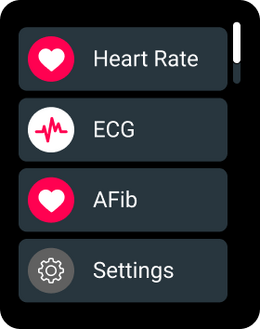
|style="padding:10px;vertical-align:top;"|Tap the side button to open the menu and select the AFib function. | |||
|} | |} | ||
[[Image:TeltoHeart_menu.png| | </div> | ||
{| | [[Image:TeltoHeart_menu.png|260px|center|link=]] | ||
| style="width: | <div style="background:#fffbf5;border-left:4px solid #ff9800;border-radius:8px;padding:4px 0;margin-bottom:4px;"> | ||
||Tap | {|style="border:none;background:none;width:100%;" | ||
|style="width:50px;padding:10px;vertical-align:top;"|[[Image:Nr2.png|36px|link=]] | |||
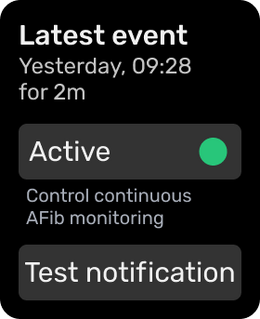
|style="padding:10px;vertical-align:top;"|Tap "Active" to activate atrial fibrillation monitoring. | |||
|} | |} | ||
[[Image:TeltoHeart_afib_active.png| | </div> | ||
[[Image:TeltoHeart_afib_active.png|260px|center|link=]] | |||
</div> | |||
<div style="border-top:1px solid #e4e7ec;padding:14px 20px;"> | |||
<div style="font-weight:700;color:#1a1a2e;margin-bottom:4px;">How to set notifications?</div> | |||
<div style="color:#374151;font-size:0.9rem;">To toggle AFib monitoring: press the button → open "AF" → change "Active" status.<br>To toggle high/low HR alerts: press the button → "Settings" → "Heart rate notifications" → change "Alert" status.</div> | |||
</div> | |||
</div> | |||
<!-- ═══════════════════════════════════ | |||
SECTION: TIME, LANGUAGE, SETTINGS | |||
════════════════════════════════════ --> | |||
<div style="background:#0054A6;color:#fff;font-size:1rem;font-weight:700;padding:10px 20px;border-radius:10px 10px 0 0;margin-top:8px;">🌐 Time, Language & General Settings</div> | |||
<div style="border:1px solid #e4e7ec;border-top:none;border-radius:0 0 10px 10px;margin-bottom:24px;overflow:hidden;"> | |||
<div style="background:#f0f5ff;border-bottom:1px solid #e4e7ec;padding:10px 20px;font-weight:700;color:#0054A6;font-size:0.95rem;">Incorrect time or date</div> | |||
< | <div style="padding:4px 20px 16px;"> | ||
< | <div style="color:#374151;font-size:0.9rem;padding:12px 0 8px;">This is usually caused by a lost connection to the phone. Follow these steps:</div> | ||
{| | <div style="background:#fffbf5;border-left:4px solid #ff9800;border-radius:8px;padding:4px 0;margin-bottom:4px;"> | ||
| style="width: | {|style="border:none;background:none;width:100%;" | ||
|| '''Synchronize time:''' | |style="width:50px;padding:10px;vertical-align:top;"|[[Image:Nr1.png|36px|link=]] | ||
If you | |style="padding:10px;vertical-align:top;"|'''Synchronize time:'''<br>If you changed time zones, tap '''SYNC NOW''' in the TeltoHeart mobile app to update the time. | ||
|} | |} | ||
{| | </div> | ||
| style="width: | <div style="background:#fffbf5;border-left:4px solid #ff9800;border-radius:8px;padding:4px 0;margin-bottom:4px;"> | ||
|| '''Check | {|style="border:none;background:none;width:100%;" | ||
|style="width:50px;padding:10px;vertical-align:top;"|[[Image:Nr2.png|36px|link=]] | |||
|style="padding:10px;vertical-align:top;"|'''Check Bluetooth connection:'''<br>Verify phone Bluetooth is on and TeltoHeart is connected. If not, re-pair through the TeltoHeart application. | |||
|} | |} | ||
{| | </div> | ||
| style="width: | <div style="background:#fffbf5;border-left:4px solid #ff9800;border-radius:8px;padding:4px 0;margin-bottom:4px;"> | ||
|| '''Restart | {|style="border:none;background:none;width:100%;" | ||
|style="width:50px;padding:10px;vertical-align:top;"|[[Image:Nr3.png|36px|link=]] | |||
|style="padding:10px;vertical-align:top;"|'''Restart TeltoHeart:'''<br>Swipe up on the home screen to open the control center and tap the power icon to restart, or hold the button for 10+ seconds. | |||
|} | |} | ||
{| | </div> | ||
| style="width: | <div style="background:#fffbf5;border-left:4px solid #ff9800;border-radius:8px;padding:4px 0;"> | ||
|| '''Update | {|style="border:none;background:none;width:100%;" | ||
|style="width:50px;padding:10px;vertical-align:top;"|[[Image:Nr4.png|36px|link=]] | |||
|style="padding:10px;vertical-align:top;"|'''Update firmware:'''<br>Outdated firmware may cause time/date issues. Check for updates in the TeltoHeart mobile app and install if available. | |||
|} | |} | ||
</div> | |||
</div> | |||
<div style="border-top:1px solid #e4e7ec;padding:14px 20px;"> | |||
<div style="font-weight:700;color:#1a1a2e;margin-bottom:4px;">How to change the language?</div> | |||
<div style="color:#374151;font-size:0.9rem;">In TeltoHeart, go to the menu → "Settings" → "Language." All supported languages will be listed — select one and confirm.</div> | |||
</div> | |||
</div> | |||
<!-- ═══════════════════════════════════ | |||
SECTION: ACCOUNT & PASSWORD | |||
════════════════════════════════════ --> | |||
<div style="background:#0054A6;color:#fff;font-size:1rem;font-weight:700;padding:10px 20px;border-radius:10px 10px 0 0;margin-top:8px;">🔑 Account & Password Issues</div> | |||
<div style="border:1px solid #e4e7ec;border-top:none;border-radius:0 0 10px 10px;margin-bottom:24px;overflow:hidden;"> | |||
<div style="background:#f0f5ff;border-bottom:1px solid #e4e7ec;padding:10px 20px;font-weight:700;color:#0054A6;font-size:0.95rem;">Forgot password for TeltoHeart app or TeltoCare</div> | |||
< | <div style="padding:4px 20px 16px;"> | ||
{| | <div style="background:#fffbf5;border-left:4px solid #ff9800;border-radius:8px;padding:4px 0;margin-top:8px;margin-bottom:4px;"> | ||
| style="width: | {|style="border:none;background:none;width:100%;" | ||
|| | |style="width:50px;padding:10px;vertical-align:top;"|[[Image:Nr1.png|36px|link=]] | ||
|style="padding:10px;vertical-align:top;"|On the login page, tap the '''Forgot Password''' option. | |||
|} | |} | ||
[[File:Screen190.png|border|center| | </div> | ||
< | [[File:Screen190.png|border|center|400px]] | ||
{| | <div style="background:#fffbf5;border-left:4px solid #ff9800;border-radius:8px;padding:4px 0;margin-top:8px;margin-bottom:4px;"> | ||
| style="width: | {|style="border:none;background:none;width:100%;" | ||
|| | |style="width:50px;padding:10px;vertical-align:top;"|[[Image:Nr2.png|36px|link=]] | ||
|style="padding:10px;vertical-align:top;"|Enter your account email address and click '''Reset my password'''. | |||
|} | |} | ||
[[File:Group 70666.png|center| | </div> | ||
< | [[File:Group 70666.png|center|400px]] | ||
{| | <div style="background:#fffbf5;border-left:4px solid #ff9800;border-radius:8px;padding:4px 0;margin-top:8px;margin-bottom:4px;"> | ||
| style="width: | {|style="border:none;background:none;width:100%;" | ||
|| | |style="width:50px;padding:10px;vertical-align:top;"|[[Image:Nr3.png|36px|link=]] | ||
|style="padding:10px;vertical-align:top;"|Check your email for a reset code and enter it in the application. | |||
|} | |} | ||
[[File:Group 70667.png|center| | </div> | ||
< | [[File:Group 70667.png|center|400px]] | ||
{| | <div style="background:#fffbf5;border-left:4px solid #ff9800;border-radius:8px;padding:4px 0;margin-top:8px;margin-bottom:4px;"> | ||
| style="width: | {|style="border:none;background:none;width:100%;" | ||
|| | |style="width:50px;padding:10px;vertical-align:top;"|[[Image:Nr4.png|36px|link=]] | ||
|style="padding:10px;vertical-align:top;"|Create a strong new password you will remember. | |||
|} | |} | ||
[[File:Group 70668.png|center| | </div> | ||
< | [[File:Group 70668.png|center|400px]] | ||
{| | <div style="background:#fffbf5;border-left:4px solid #ff9800;border-radius:8px;padding:4px 0;margin-top:8px;"> | ||
| style="width: | {|style="border:none;background:none;width:100%;" | ||
|| | |style="width:50px;padding:10px;vertical-align:top;"|[[Image:Nr5 - Copy.png|36px|link=]] | ||
|style="padding:10px;vertical-align:top;"|Log in to the TeltoHeart app or TeltoCare with your new password. | |||
|} | |} | ||
</div> | |||
</div> | |||
</div> | |||
<!-- ═══════════════════════════════════ | |||
TELTОCARE SECTION TITLE | |||
════════════════════════════════════ --> | |||
<div style="text-align:center;padding:32px 0 16px;"> | |||
<div style="font-size:2rem;font-weight:700;color:#0054A6;margin-bottom:6px;">TeltoCare Platform</div> | |||
<div style="color:#667085;font-size:1rem;">Patient management & data questions</div> | |||
</div> | |||
<!-- ═══════════════════════════════════ | |||
SECTION: PATIENT ACCOUNT | |||
════════════════════════════════════ --> | |||
<div style="background:#0054A6;color:#fff;font-size:1rem;font-weight:700;padding:10px 20px;border-radius:10px 10px 0 0;margin-top:8px;">👤 Patient Account & Management</div> | |||
<div style="border:1px solid #e4e7ec;border-top:none;border-radius:0 0 10px 10px;margin-bottom:24px;overflow:hidden;"> | |||
<div style="padding:14px 20px;border-bottom:1px solid #f0f0f0;"> | |||
<div style="font-weight:700;color:#1a1a2e;margin-bottom:4px;">How to create a patient account?</div> | |||
<div style="color:#374151;font-size:0.9rem;">Log in to TeltoCare with a doctor or administrator account. Go to "Patient List," select "Create Patient," fill in the required information, and click "Create."</div> | |||
</div> | |||
---- | <div style="padding:14px 20px;border-bottom:1px solid #f0f0f0;"> | ||
<div style="font-weight:700;color:#1a1a2e;margin-bottom:4px;">How can a patient create an account?</div> | |||
<div style="color:#374151;font-size:0.9rem;">Via the TeltoHeart mobile app or at https://teltocare.com. Select the registration option, enter the required information, and you will receive a temporary password by email to change to your desired password.</div> | |||
</div> | |||
<div style="padding:14px 20px;border-bottom:1px solid #f0f0f0;"> | |||
<div style="font-weight:700;color:#1a1a2e;margin-bottom:4px;">How to verify a patient?</div> | |||
<div style="color:#374151;font-size:0.9rem;">A hospital administrator clicks "Patients," selects the patient with "In Queue" status, clicks [[File:More_button.png|18px|link=]], and selects "Invite."</div> | |||
</div> | |||
= | <div style="padding:14px 20px;border-bottom:1px solid #f0f0f0;"> | ||
<div style="font-weight:700;color:#1a1a2e;margin-bottom:4px;">How to delete a patient?</div> | |||
<div style="color:#374151;font-size:0.9rem;">Select the patient in the patient list, click [[File:More_button.png|18px|link=]], then select "Delete."</div> | |||
</div> | |||
<div style="padding:14px 20px;border-bottom:1px solid #f0f0f0;"> | |||
<div style="font-weight:700;color:#1a1a2e;margin-bottom:4px;">Are patient data saved after deletion?</div> | |||
<div style="color:#374151;font-size:0.9rem;">Deleted data is no longer visible but is stored for 14 days. The account can be restored within that period by the hospital, technical support, or an administrator.</div> | |||
</div> | |||
<div style="padding:14px 20px;border-bottom:1px solid #f0f0f0;"> | |||
<div style="font-weight:700;color:#1a1a2e;margin-bottom:4px;">How to transfer a patient to another doctor or clinic?</div> | |||
<div style="color:#374151;font-size:0.9rem;">Go to the patient's profile, click [[File:Edit_button.png|18px|link=]] edit patient, and assign a doctor from the doctor list.</div> | |||
</div> | |||
<div style="padding:14px 20px;border-bottom:1px solid #f0f0f0;"> | |||
<div style="font-weight:700;color:#1a1a2e;margin-bottom:4px;">How to restrict patient visibility to other doctors?</div> | |||
<div style="color:#374151;font-size:0.9rem;">Go to the doctor's account, click [[File:Edit_button.png|18px|link=]] edit doctor, then go to "User Permissions" and configure the desired permissions.</div> | |||
</div> | |||
<div style="padding:14px 20px;border-bottom:1px solid #f0f0f0;"> | |||
<div style="font-weight:700;color:#1a1a2e;margin-bottom:4px;">Can a patient be assigned to multiple clinics?</div> | |||
<div style="color:#374151;font-size:0.9rem;">No, a patient cannot be assigned to multiple clinics at the same time.</div> | |||
</div> | |||
<div style="padding:14px 20px;border-bottom:1px solid #f0f0f0;"> | |||
<div style="font-weight:700;color:#1a1a2e;margin-bottom:4px;">Can I log in to the TeltoHeart app with a doctor, hospital, or distributor account?</div> | |||
<div style="color:#374151;font-size:0.9rem;">No. Only a patient account can link TeltoHeart and send data to TeltoCare. Other account types are not intended for data collection.</div> | |||
</div> | |||
<div style="padding:14px 20px;"> | |||
<div style="font-weight:700;color:#1a1a2e;margin-bottom:4px;">Will I see all patients or just my own?</div> | |||
<div style="color:#374151;font-size:0.9rem;">Hospital and doctor accounts can see the entire hospital patient list. Doctor accounts can additionally filter by patients assigned to them.</div> | |||
</div> | |||
</div> | |||
<!-- ═══════════════════════════════════ | |||
SECTION: VIEWING DATA IN TELTOCARE | |||
════════════════════════════════════ --> | |||
<div style="background:#0054A6;color:#fff;font-size:1rem;font-weight:700;padding:10px 20px;border-radius:10px 10px 0 0;margin-top:8px;">📊 Viewing & Managing Data in TeltoCare</div> | |||
<div style="border:1px solid #e4e7ec;border-top:none;border-radius:0 0 10px 10px;margin-bottom:40px;overflow:hidden;"> | |||
<div style="padding:14px 20px;border-bottom:1px solid #f0f0f0;"> | |||
<div style="font-weight:700;color:#1a1a2e;margin-bottom:4px;">Where to see patient data?</div> | |||
<div style="color:#374151;font-size:0.9rem;">After logging in, open the patient's profile from the patient list. Here you can view all information including medical records, ECG data, and more.</div> | |||
</div> | |||
= | <div style="padding:14px 20px;border-bottom:1px solid #f0f0f0;"> | ||
<div style="font-weight:700;color:#1a1a2e;margin-bottom:4px;">How to print / download an ECG?</div> | |||
<div style="color:#374151;font-size:0.9rem;">In the patient's profile under "Electrocardiogram," select the desired record and click "Export" or "Print" to download a PDF.</div> | |||
</div> | |||
<div style="padding:14px 20px;border-bottom:1px solid #f0f0f0;"> | |||
<div style="font-weight:700;color:#1a1a2e;margin-bottom:4px;">Is there a caliper function?</div> | |||
<div style="color:#374151;font-size:0.9rem;">Yes. TeltoCare includes a caliper function for measuring ECG intervals, available in the "Electrocardiogram" section.</div> | |||
</div> | |||
<div style="padding:14px 20px;border-bottom:1px solid #f0f0f0;"> | |||
<div style="font-weight:700;color:#1a1a2e;margin-bottom:4px;">How to delete an unreadable ECG?</div> | |||
<div style="color:#374151;font-size:0.9rem;">Currently, there is no option to delete ECG recordings.</div> | |||
</div> | |||
<div style="padding:14px 20px;border-bottom:1px solid #f0f0f0;"> | |||
<div style="font-weight:700;color:#1a1a2e;margin-bottom:4px;">How to filter patient ECGs by indication?</div> | |||
<div style="color:#374151;font-size:0.9rem;">In "Electrocardiogram," find the [[File:info_button.png|18px|link=]] symbol next to each record, which indicates the patient's stated reason for the recording.</div> | |||
|| | </div> | ||
<div style="padding:14px 20px;border-bottom:1px solid #f0f0f0;"> | |||
<div style="font-weight:700;color:#1a1a2e;margin-bottom:4px;">How to filter data by time interval (weekly, monthly, yearly)?</div> | |||
<div style="color:#374151;font-size:0.9rem;">Use the time interval selector [[File:Time_interval_teltocare.png|200px|link=]] to set start/end dates or filter by hours, days, weeks, months, or years.<br>[[File:Time_interval_teltocare2.png|200px|link=]]</div> | |||
|| | </div> | ||
<div style="padding:14px 20px;"> | |||
<div style="font-weight:700;color:#1a1a2e;margin-bottom:4px;">Where to see AFib notifications?</div> | |||
<div style="color:#374151;font-size:0.9rem;">Atrial fibrillation notifications are visible in the "Atrial Fibrillation" section of the patient's profile.</div> | |||
</div> | |||
</div> | |||
</div> | |||
[[Category:Main Page]] | [[Category:Main Page]] | ||
Revision as of 14:34, 10 June 2026
Main Page > FAQ
TeltoHeart
Frequently Asked Questions & Troubleshooting
⚡ Device Power & Charging Issues


📶 Connectivity, Pairing & Bluetooth Issues
🔄 Data Sync & Visibility Issues


❤️ Heart Rate & Wrist Detection Issues
📈 ECG Related Issues
💓 AFib Related Issues
🌐 Time, Language & General Settings
🔑 Account & Password Issues


TeltoCare Platform
Patient management & data questions
👤 Patient Account & Management


📊 Viewing & Managing Data in TeltoCare


