
How to Pair TeltoHeart with TeltoHeart mobile application: Difference between revisions
m Protected "How to Pair TeltoHeart with TeltoHeart mobile application" ([Edit=Allow only administrators] (indefinite) [Move=Allow only administrators] (indefinite)) |
|||
| Line 1: | Line 1: | ||
==Start using TeltoHeart== | ==Start using TeltoHeart== | ||
<!-- ─── PAIRING ─── --> | |||
<div style="background:#ffffff; border:1px solid #e0e8f4; border-radius:12px; padding:32px; margin-bottom:8px;"> | |||
<p style="font-size:22px; font-weight:700; color:#0054A6; margin:0 0 24px; text-align:center;">How to pair TeltoHeart with the mobile application</p> | |||
{| style="width:100%; border-collapse:collapse;" | |||
|- | |- | ||
|style=" | | style="width:52px; vertical-align:top; padding:0 0 16px;" | [[Image:Nr1.png|40px|link=]] | ||
| style="padding:0 0 16px 16px; font-size:15px; vertical-align:top;" | Tap '''PAIR YOUR DEVICE''' to begin the pairing process. | |||
|} | |||
<div style="text-align:center; margin:8px 0 20px;">[[File:Screen277.png|border|class=tlt-border|link=|480px]]</div> | |||
{| style="width:100%; border-collapse:collapse;" | |||
|- | |- | ||
| | | style="width:52px; vertical-align:top; padding:0 0 16px;" | [[Image:Nr2.png|40px|link=]] | ||
| style="padding:0 0 16px 16px; font-size:15px; vertical-align:top;" | Accept Bluetooth permissions when prompted. | |||
|} | |||
<div style="text-align:center; margin:8px 0 20px;">[[File:Group70664.png|border|class=tlt-border|link=|center]]</div> | |||
{| style="width:100%; border-collapse:collapse;" | |||
|- | |- | ||
|style=" | | style="width:52px; vertical-align:top; padding:0 0 16px;" | [[Image:Nr2.png|40px|link=]] | ||
| style="padding:0 0 16px 16px; font-size:15px; vertical-align:top;" | The app will scan for nearby devices. | |||
|} | |||
<div style="text-align:center; margin:8px 0 20px;">[[File:Screen285.png|border|class=tlt-border|link=|480px]]</div> | |||
{| style="width:100%; border-collapse:collapse;" | |||
|- | |- | ||
| | | style="width:52px; vertical-align:top; padding:0 0 16px;" | [[Image:Nr3.png|40px|link=]] | ||
| style="padding:0 0 16px 16px; font-size:15px; vertical-align:top;" | Select your TeltoHeart by tapping its name. | |||
|} | |||
<div style="text-align:center; margin:8px 0 20px;">[[File:Screen292.png|border|class=tlt-border|link=|560px]]</div> | |||
{| style="width:100%; border-collapse:collapse;" | |||
|- | |- | ||
|style=" | | style="width:52px; vertical-align:top; padding:0 0 16px;" | [[Image:Nr4.png|40px|link=]] | ||
| style="padding:0 0 16px 16px; font-size:15px; vertical-align:top;" | TeltoHeart will display an incoming pair request. | |||
|} | |||
<div style="text-align:center; margin:8px 0 20px;">[[Image:TeltoHeart-paircode.png|200px|link=]]</div> | |||
{| style="width:100%; border-collapse:collapse;" | |||
|- | |- | ||
| | | style="width:52px; vertical-align:top; padding:0 0 16px;" | [[Image:Nr5 - Copy.png|40px|link=]] | ||
| style="padding:0 0 16px 16px; font-size:15px; vertical-align:top;" | Enter the passkey shown on your TeltoHeart into the Bluetooth pairing request window in the app. | |||
|} | |||
| | |||
<div style="text-align:center; margin:8px 0 20px;">[[File:Group 70642.png|center|frame]]</div> | |||
{| style="width:100%; border-collapse:collapse;" | |||
| | |||
|style=" | |||
|- | |- | ||
| style="width:52px; vertical-align:top; padding:0 0 16px;" | [[Image:Nr6.png|40px|link=]] | |||
| style="padding:0 0 16px 16px; font-size:15px; vertical-align:top;" | TeltoHeart will confirm a successful pairing. | |||
|| | |||
|} | |} | ||
<div style="text-align:center; margin:8px 0 20px;">[[Image:TeltoHeart-paired.png|200px|link=]]</div> | |||
{| style="width:100%; border-collapse:collapse;" | |||
|- | |- | ||
| style="width:52px; vertical-align:top; padding:0 0 16px;" | [[Image:Nr7.png|40px|link=]] | |||
| style="padding:0 0 16px 16px; font-size:15px; vertical-align:top;" | Keep the TeltoHeart application '''running in the background at all times''' to ensure uninterrupted data transfer. | |||
|} | |} | ||
<div style="background:#EEF6FF; border-left:4px solid #0054A6; border-radius:0 8px 8px 0; padding:14px 18px; margin-top:16px; display:flex; align-items:flex-start; gap:12px;"> | |||
[[File:Note_icon.png|24px|link=]] | |||
<div>'''Note:''' Closing the app will stop data transfer to the TeltoCare platform.</div> | |||
</div> | |||
</div> | |||
Revision as of 16:19, 10 June 2026
Start using TeltoHeart
How to pair TeltoHeart with the mobile application

|
Tap PAIR YOUR DEVICE to begin the pairing process. |


|
Accept Bluetooth permissions when prompted. |

|
|
The app will scan for nearby devices. |


|
Select your TeltoHeart by tapping its name. |


|
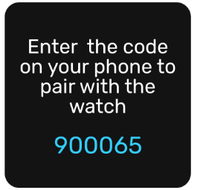
TeltoHeart will display an incoming pair request. |

|
Enter the passkey shown on your TeltoHeart into the Bluetooth pairing request window in the app. |


|
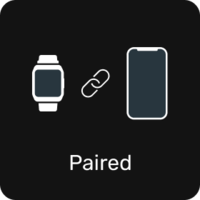
TeltoHeart will confirm a successful pairing. |

|
Keep the TeltoHeart application running in the background at all times to ensure uninterrupted data transfer. |

Note: Closing the app will stop data transfer to the TeltoCare platform.